

The Easiest Way to Start and Scale Your U.S. Business.



With over 30 million users in 160+ countries, FreshBooks is one of the most intuitive accounting platforms designed for people who’d rather spend their time serving clients than fighting spreadsheets.
It’ll make it easy to get your account configured correctly from Day 1, save you hours, and avoid messy bookkeeping mistakes later.
While FreshBooks makes financial management easy, this guide takes it a step further.
In this step-by-step tutorial, you’ll learn exactly how to set up FreshBooks and pair it with doola to solidify your financial foundation.
By the end of this guide, you’ll be able to customize invoices, connect payments, track expenses, organize clients, manage taxes, use projects, track time, and run financial reports with confidence.
How to Set Up FreshBooks as a Beginner

Once you get your initial settings right, everything else (invoicing, expenses, payments, taxes) becomes much easier.
Think of this phase as laying the foundation for your entire bookkeeping system. So let’s begin with the basics.
Step 1: Create Your FreshBooks Account
Getting started with FreshBooks only takes a few minutes. Here’s how to set up your account the right way:
1. Sign Up for FreshBooks
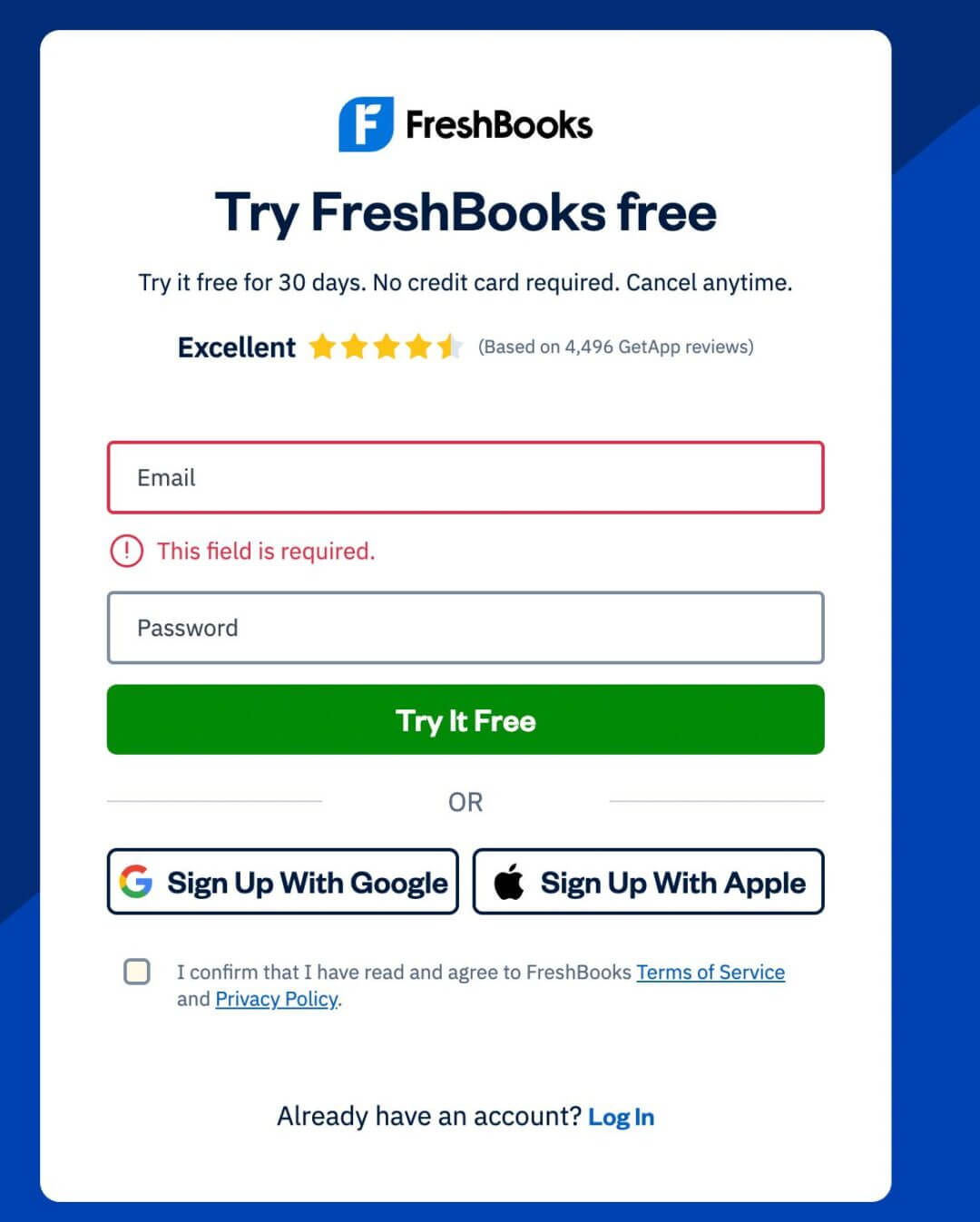
- Visit FreshBooks and click on “Try It Free” to sign up for a free trial.
- Enter your email and set a password or sign up using your Gmail ID.
- FreshBooks may ask a few guided questions about you and your business.
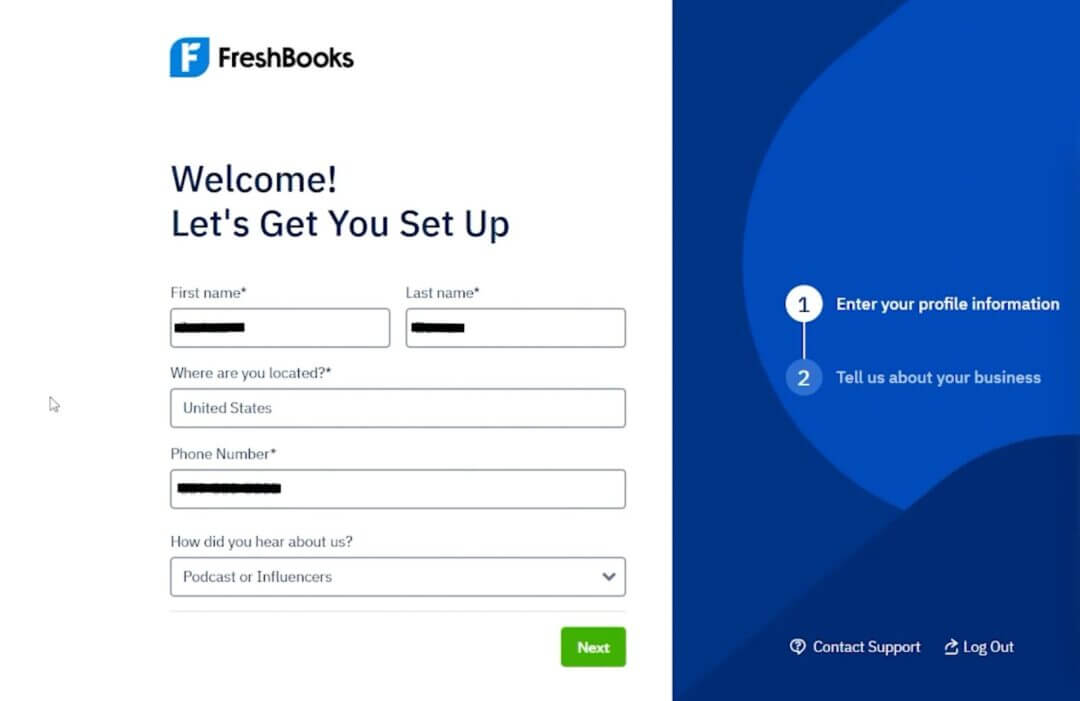
- Choose the option that best matches how you earn money. This helps FreshBooks customize your dashboard later.
2. Choose Your Business Type

FreshBooks will prompt you to provide information about the business you run. For beginners, the most common choices include:
- Business name and details
- Estimated revenue
- Services and tools you’re using for bookkeeping and invoicing
This determines which tools are highlighted first (Invoices, Projects, Time Tracking, etc.).
🔖 Related Read: 8 Best Online Small Business Bookkeeping Services for Entrepreneurs in 2025
3. Verify Your Account
FreshBooks will send a verification email. Confirm it to unlock full access. Once done, you’ll be redirected to your brand-new FreshBooks dashboard.
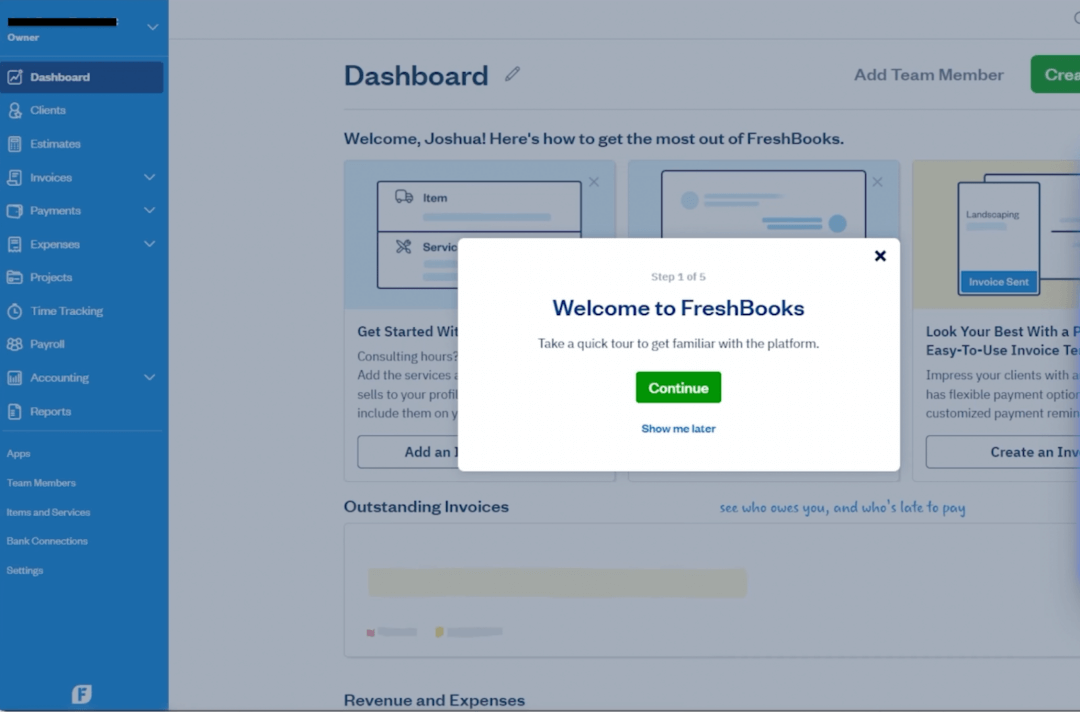
Here’s what you’ll see:
- Navigation Menu (Left Sidebar): Invoices, Clients, Expenses, Projects, Time Tracking, Reports, Accounting, and Settings.
- Dashboard Overview (Center): Quick snapshot of your outstanding invoices, recent payments, and unreviewed expenses.
- Shortcuts (Top Bar): Create a new invoice, new client, new estimate, or track time instantly.
FreshBooks aims to minimize clutter, which is why every core tool is one click away. So, take a moment to explore and set up these core areas:
1. Account Settings
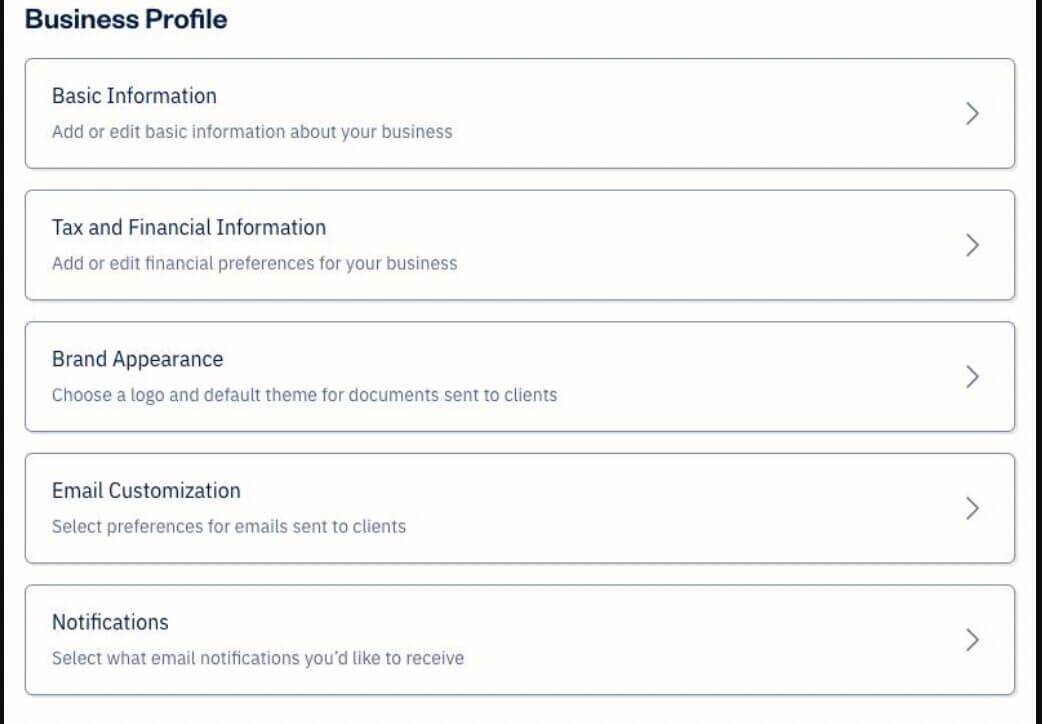
Go to Settings → Company Profile and confirm your business details to ensure your invoices and reports stay consistent:
- Business name
- Email address
- Time zone
- Currency
- Tax ID (if applicable)
2. Invoice Settings

You’ll customize these in Step 3, but it’s good to locate them now under: Settings → Invoices
3. Payment Methods
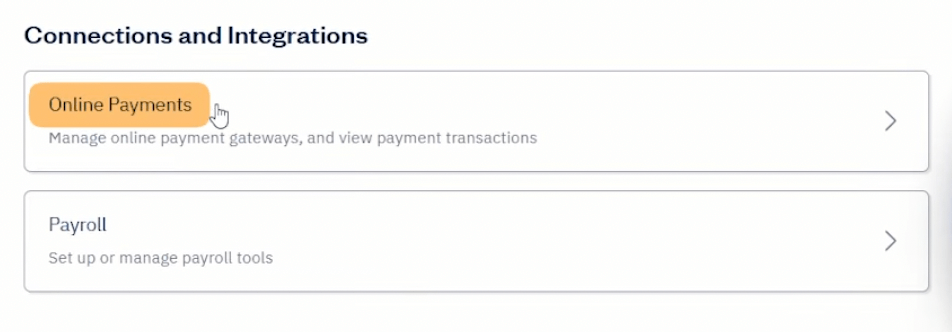
Under Settings → Accept Online Payments, you’ll be able to connect to Stripe, PayPal, or bank transfers later.
4. Quick Shortcuts
Remember to set up a few shortcuts to make your daily tasks faster and smoother.
- “New Invoice”
- “New Client”
- “New Expense”
Step 2: Set Up Your Business Information
The next step is to ensure that every invoice, report, and document generated by FreshBooks looks professional, reflects your brand, and aligns with compliance requirements.
FreshBooks makes this setup easy through its Business Settings panel.
1. Add Your Basic Business Details
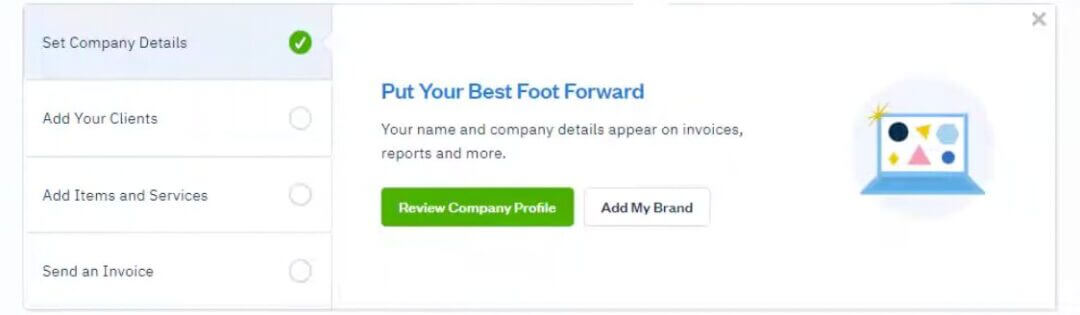
Go to Settings → Company Profile.
Here, you’ll enter the foundational information that will appear on invoices, estimates, reports, and client communications:
- Business Name: Use your full legal business name (LLC, Corp, or DBA).
- Address: Add your physical or mailing address. If you’re a remote founder, consider using a virtual business address.
- Email Address: This is where clients will reply and where FreshBooks sends notifications.
- Phone Number: Optional, but adds legitimacy to invoices.
- Website: Great for branding and useful if clients want to learn more.
The Company Profile section helps FreshBooks format your invoices properly and ensures your business records remain consistent across all documents.
2. Upload Your Logo & Brand Colors
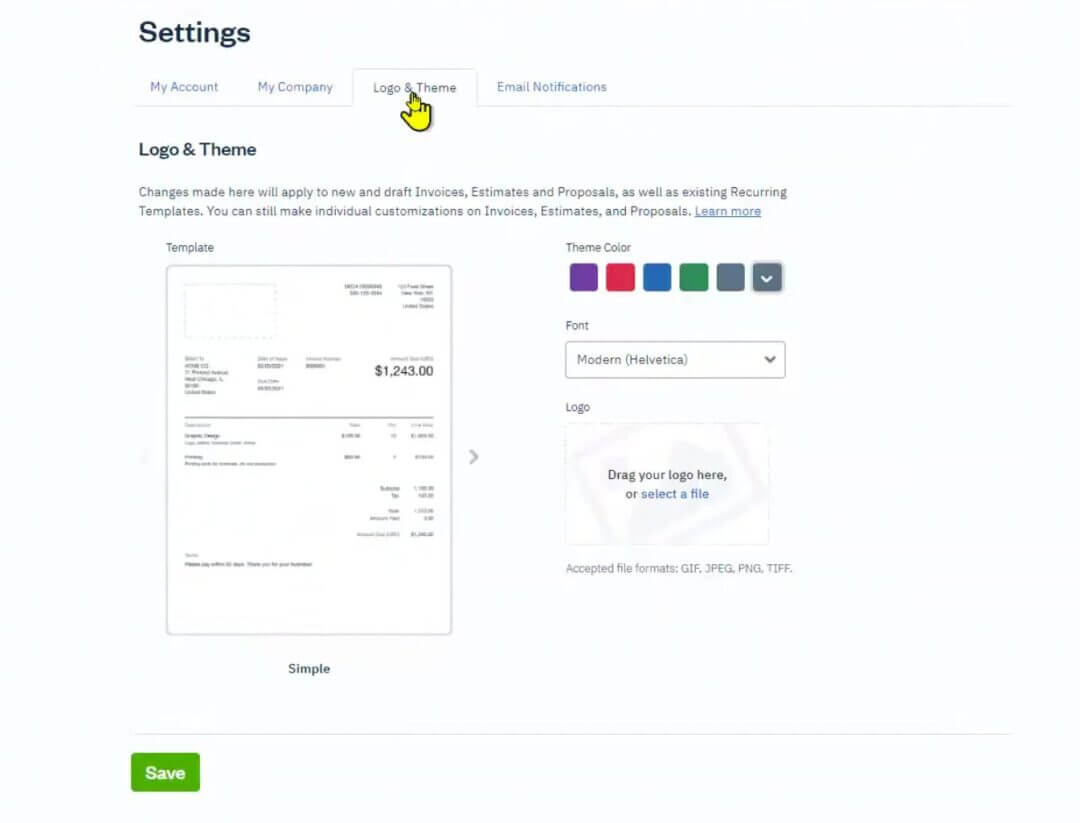
Under the same settings page, you’ll see the branding options. This customization helps your invoices and client communications reflect your brand identity. You can:
- Upload your business logo (PNG or JPG)
- Select brand colors that match your website or branding
- Choose fonts or formatting styles (depending on the plan)
Maintain consistent branding across invoices, emails, and proposals. It improves client perception and reduces confusion.
3. Configure Time Zone, Currency & Language
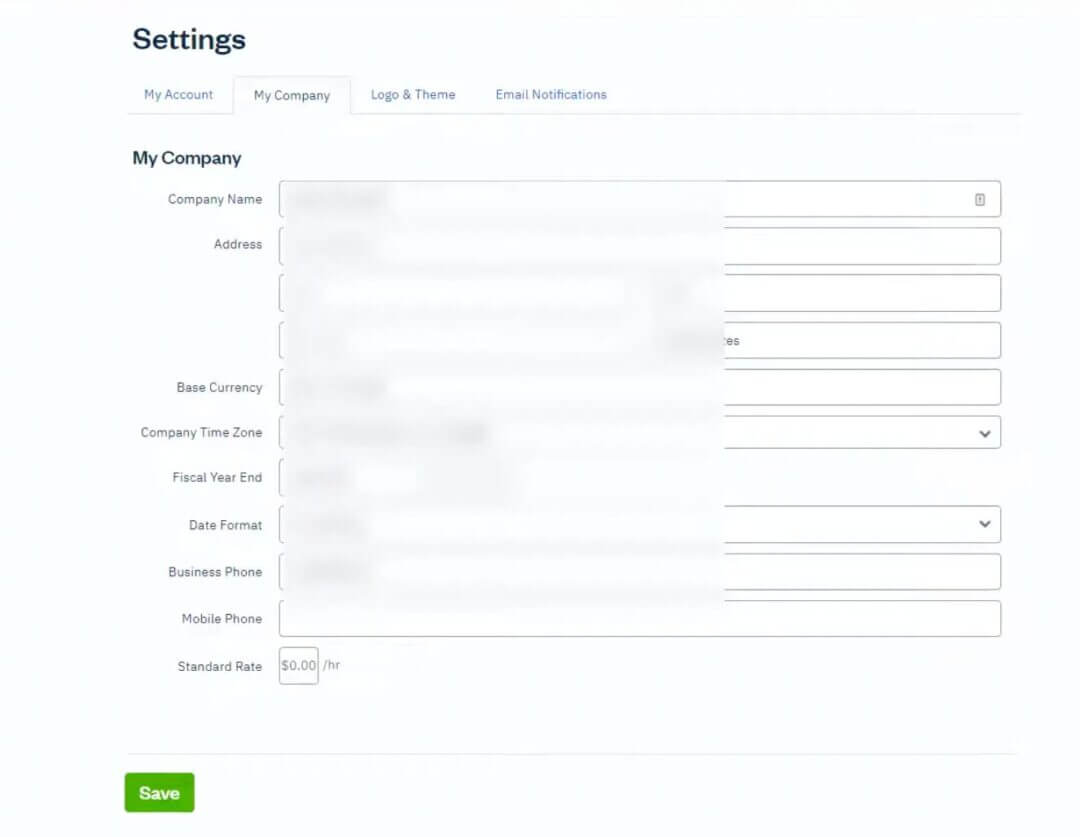
FreshBooks supports international businesses, so these settings ensure your invoices align with how and where you operate, especially useful if you’re a global freelancer or e-commerce seller.
- Time Zone: Affects timestamps on invoices, payments, and time tracking.
- Currency: Choose the currency you bill in (USD, EUR, INR, etc.).
Why Consistency Matters for Invoices & IRS Compliance
Even small details, such as mismatched email addresses or inconsistent names, can create unnecessary confusion when filing taxes or applying for loans, grants, or payment platforms.
It has real compliance implications:
- Your invoices must accurately reflect your business details for IRS and state-level bookkeeping requirements.
- Using consistent business information helps accountants, auditors, and tax professionals prepare accurate filings.
- Banking partners and payment processors often compare invoices against business registration details.
Step 3: Customize Your Invoice Settings
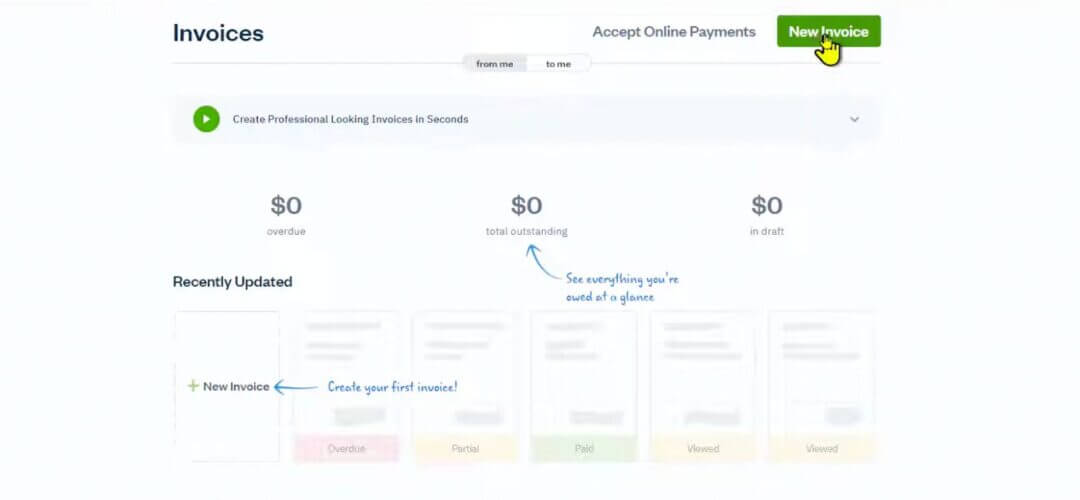
Setting up your FreshBooks invoice settings now ensures every invoice looks professional, reflects your brand, and helps you get paid consistently on time.
This ensures every invoice looks consistent, communicates clearly, and helps you get paid faster. All customization is available in Settings → Invoices.
1. Set Your Invoice Defaults
FreshBooks allows you to define the standard rules that apply to every invoice you issue. Set these once and save hours over time.
Choose how quickly you want clients to pay you by setting up Payment Terms:
- Due on receipt
- Net 7
- Net 15
- Net 30
- Custom deadlines
Shorter payment terms = faster cash flow. That’s why many freelancers choose Net 7 or Net 14.
Also, FreshBooks allows you to add Late Fees, such as:
- A flat late fee
- A percentage-based late fee
- Automated reminders
These could help you protect your revenue and discourage overdue payments. You can also add a friendly, clear message at the bottom of every invoice. This builds trust and reduces back-and-forth communication.
Examples:
👉🏼 “Thank you for your business!”
👉🏼 “Payment is due within 7 days via credit card or bank transfer.”
👉🏼 “If you have any questions about this invoice, please reach out anytime.”
After clients pay, FreshBooks can automatically send a thank-you email. You can customize it to:
- Reinforce professionalism
- Encourage long-term relationships
- Ask for testimonials or referrals (optional)
2. Customize Your Invoice Templates
This is where your earlier branding setup (Step 2) really pays off.FreshBooks offers a variety of invoice designs to choose from, ranging from clean and minimalist to modern and branded.
You can customize:
- Layout style
- Logo placement
- Header and footer information
- Color accents
- Font sizes
- Contact details
3. Professional vs. Basic Invoice Layouts
Both are clean and compliant, but the choice depends on how polished you want your client experience to be. Select the option that best represents your business on your invoices.
Professional Layouts:
- Ideal for agencies, consultants, creatives, and premium brands
- Include logo placement, color accents, and optional disclaimers
- Great for building brand credibility
Basic Layouts:
- Best for simple service-based businesses
- Minimal styling, easy to print
- Faster to create for recurring clients
Tips to Optimize Invoices for Faster Client Payments
Getting paid faster is all about clarity and convenience. Here’s what works best:
✔ Be specific with your service descriptions
Instead of writing “Marketing services,” try “SEO strategy session of 2 hours.”
Clear descriptions reduce disputes and speed up approvals.
✔ Offer multiple payment methods
Enable credit cards, ACH transfers, or online payments to remove friction.
✔ Use automated reminders
Automations take awkward follow-ups off your plate. FreshBooks can send:
- Reminder before the due date
- Reminder on the due date
- Late payment reminder
✔ Add incentives for early payment
Some freelancers offer 1–2% discounts for payments made within 3 days.
✔ Set clear terms upfront
Transparency means fewer delays. List:
- What’s included
- What’s billable
- Payment expectations
- Late fee policies
Step 4: Connect Payment Methods

Faster payments = better cash flow, fewer reminders, and less admin work. So, the next step is to enable online payments, allowing clients to pay directly through FreshBooks.
FreshBooks integrates with several popular payment processors, making it easy to accept credit cards, ACH transfers, and sometimes PayPal (depending on region).
All payment options can be managed under Settings → Accept Online Payments.
🔖 Related Read: Payoneer vs PayPal vs Stripe: Which Is Best for International Founders?
1. Set Up Credit Card Payments
Credit cards are the fastest and most convenient payment method for clients, which means you get paid sooner.
FreshBooks supports credit card payments through its built-in processor (powered by Stripe in many regions).
Once enabled, clients can pay using:
- Visa
- Mastercard
- American Express
- Discover (U.S. only)
Fees: Typically range from 2.9% + $0.30 per transaction (varies by region).
Deposit timing: 1–3 business days
2. Enable ACH Bank Transfers (U.S. only)
ACH transfers give clients the option to pay you directly from their bank account. For service businesses, this is often the most cost-effective way to get paid.
- Lower processing fees
- Ideal for large invoices (e.g., $1,000+, $5,000+)
- Helps clients avoid credit card limits
Fees: Typically lower than credit card fees, at approximately 1% per transaction (up to a specified cap).
Deposit timing: 4–6 business days
3. Add PayPal (If Relevant)
Depending on your region, FreshBooks may offer PayPal integration. However, you should enable it only for clients who explicitly request it.
Deposit timing: typically instant into your PayPal wallet
Fees: Generally 3.49% + fee by country
Pros:
✔️ Great for freelancers with international clients
✔️ Familiar platform for buyers
✔️ Instant payment notifications
Cons:
⚠️ Higher fees
⚠️ Currency conversion fees can add up
4. How FreshBooks Processes Payments
FreshBooks automatically logs the payment into your books, so your income stays organized with no extra manual work.
When a client pays an invoice:
- FreshBooks marks the invoice as Paid
- The payment appears in your Payments dashboard
- The payment provider processes funds
- Money is deposited into your linked business bank account
Pros & Cons of Enabling Auto-Deposits
FreshBooks allows for auto-deposits, where all collected payments are automatically deposited, which is why you need a U.S. business bank account.
Pros:
✔️ Zero manual transfers
✔️ Faster reconciliation
✔️ Reduces bookkeeping errors
✔️ Predictable cash flow
Cons:
⚠️ Harder to pause transfers during disputes
⚠️ Some founders prefer manual review before deposit
Best Practices for Beginners
To avoid payment delays or client confusion, use these tips:
✔ Verify your bank account early
FreshBooks will send micro-deposits for bank verification. Do this right away to avoid delays.
✔ Offer at least two payment methods
Credit cards and ACH provide clients with flexibility and speed.
✔ Explain payment options on the invoice
Add a note like: “Pay securely by credit card or bank transfer directly through this invoice.”
✔ Review payment fees monthly
Knowing which payment methods clients prefer helps you manage costs effectively.
✔ Test a sample invoice
Send a test invoice to yourself to see how the client payment experience feels.
Step 5: Add Clients and Contacts
Adding clients is the foundation for smooth invoicing and organized bookkeeping. It will save you time and prevent billing mistakes later.
All client management occurs under “Clients” in the left-side navigation.

1. Add Your First Clients
Add as much detail as possible since FreshBooks uses this information to auto-fill invoices, estimates, and reports. Click Clients → New Client and fill in:
- Client Name or Company Name
- Primary Contact (first + last name)
- Email Address (used for sending invoices)
- Phone Number (optional)
- Billing Address
- Business ID or Tax Number (optional but helpful for compliance)
2. Add Internal Notes About Clients
FreshBooks allows you to add internal-only notes that clients will never see. These notes help keep your communication consistent, especially if multiple team members access the account.
Examples of notes to save:
- Preferred invoicing method (monthly, per milestone, etc.)
- Important project details
- Late payment history
- Client-specific instructions
- Contract renewal reminders
3. Assign Billing Preferences
This is especially useful if you serve a mix of local and international clients or if each client has different billing conditions.
Under each client profile, you can set:
- Default currency
- Default language
- Default payment terms
- Hourly vs. flat-rate pricing
- Default late fee preference
- Invoice reminders
4. Organize Clients Into Groups: Perfect for Recurring Services
If you offer recurring service packages (such as retainer, monthly consulting, or ongoing maintenance), grouping clients saves time.
It helps you apply bulk actions, run targeted reports, and streamline recurring billing.
Examples of groups to create:
- Monthly Retainer Clients
- One-Time Project Clients
- High-Value Clients
- International Clients
- VIP or Priority Clients
5. Import Clients from Other Tools (Optional)
If you’re switching from another platform, FreshBooks makes migration simple. Go to Clients → Import and follow the mapping instructions.
FreshBooks walks you through aligning each column of data correctly (name, email, address, etc.).
You can import clients from:
- CSV or Excel files
- QuickBooks
- Xero
- Other invoice tools with export features
Best Practices for Beginners
✔ Keep contact details updated: Accurate emails prevent bounced invoices.
✔ Record billing preferences early: Avoid miscommunication or incorrect invoice terms.
✔ Use groups to manage recurring clients: Great for retainer-based businesses.
✔ Attach files or agreements: FreshBooks lets you store documents inside client profiles.
✔ Tag clients for reporting: Helpful when tracking revenue by client category.
Step 6: Create and Send Your First Invoice
Sending your first invoice in FreshBooks is quick and painless once you know the steps. Here’s how to create an invoice in FreshBooks from start to finish.
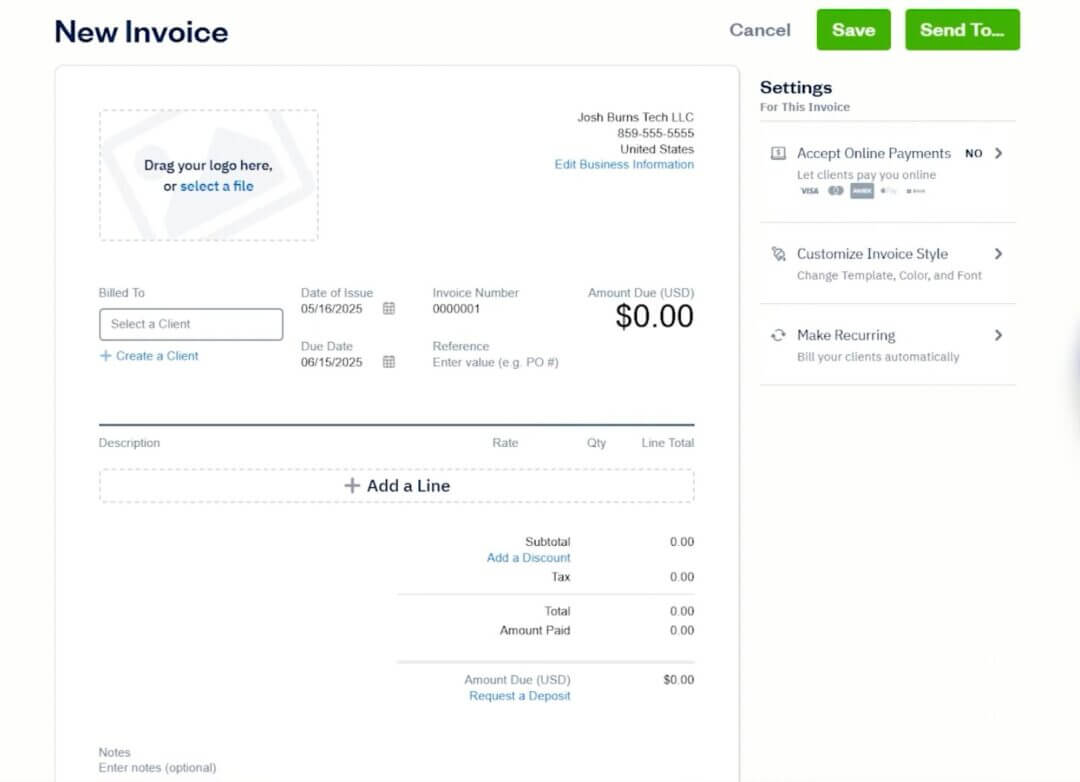
1. Click “New Invoice”
From the left navigation menu, go to Invoices → New Invoice. This opens a blank invoice template customized based on your earlier settings (logo, colors, payment terms, etc.).
2. Add Your Client
If you haven’t added the client yet, you can create one directly from inside the invoice. At the top of the invoice page:
✔️ Click “Add a Client”
✔️ Choose a client from your directory
✔️ FreshBooks will automatically fill in their details (email, address, payment terms)
3. Add Services or Items
Under the line items section:
✔️ Click “Add a Line”
✔️ Select an existing service/item or create one on the spot
✔️ Enter:
- Description
- Rate (hourly or fixed)
- Quantity (hours, units, sessions, etc.)
- Total amount
Pro Tip: Use consistent names for your services (e.g., “Website Design – 10 Hours”) to keep your reports clean and understandable.
4. Apply Taxes (If Needed)
You can also set a default tax rate if most of your invoices follow the same rules. If you charge sales tax, click the tax column next to your line item and choose the correct tax rate.
FreshBooks supports:
✔️ Local sales tax
✔️ State sales tax
✔️ VAT/GST (for international businesses)
5. Add Discounts (Optional)
To include a discount:
- Scroll to Subtotal
- Click “Add Discount”
- Enter either a percentage (e.g., 10%) or a fixed amount ($50 off)
This is useful for:
✔️ Retainer agreements
✔️ Early-payment clients
✔️ Promotional pricing
6. Add Notes, Terms & Attachments
Adding these details upfront reduces client questions and disputes. Scroll down to the Notes section to add:
- Project description
- Deliverables
- Custom messages
- Instructions about payment or timelines
You can also upload attachments like:
✔️ Contracts
✔️ Work summaries
✔️ Estimates that match the invoice
7. Preview Your Invoice
Before sending, click Preview to see how your invoice will appear to the client. This prevents embarrassing mistakes and protects your professionalism.
Check that:
✔️ All services are correct
✔️ Dates are accurate
✔️ Branding looks clean
✔️ Tax totals are correct
✔️ Client details are correct
8. Send Your Invoice
Once everything looks good:
- Click Send
- FreshBooks will email the invoice to your client
- You’ll receive a notification when they view it and when they pay it
You can also generate a shareable link if your client prefers messaging apps over email.
Tips for Writing Clear Service Descriptions
Good invoicing isn’t just about totals. It’s about clarity. Clear descriptions help you get paid faster and avoid confusion. Here’s what works:
✔ Be specific
Instead of “Consulting,” write “Online strategy session for 3 hours @ $120/hr.”
✔ Break down major projects
Large invoices? Split them by phase or deliverable.
✔ Avoid jargon
Clients shouldn’t feel confused by technical terms.
✔ Add context when necessary
Example: “Includes revisions delivered on Jan 12.”
✔ Use consistent naming
This keeps your reports organized and easier to analyze.
Step 7: Set Up Expenses & Receipt Tracking
Properly setting up FreshBooks expenses helps you avoid bookkeeping stress, maximize tax deductions, and maintain accurate financial records throughout the year.
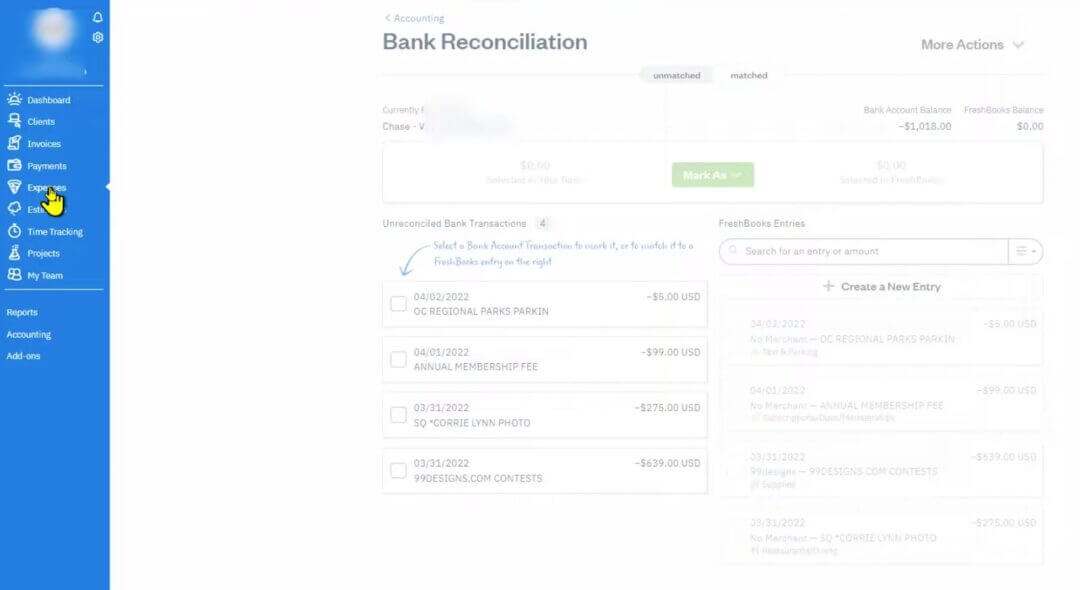
Here’s how to set up your expenses correctly from Day 1.
1. Add Expenses Manually & Categorize Them
FreshBooks comes with pre-built tax-friendly categories, which makes filing taxes easier later. To record your first expense, go to Expenses → New Expense.
Enter:
- Amount
- Vendor name
- Date
- Payment method (bank, credit card, cash)
- Notes (optional)
Then select a category such as:
- Software & tools
- Office supplies
- Meals
- Travel
- Advertising
- Equipment
- Contractor payments
- Utilities
💡 Pro Tip: Add short notes like “client lunch,” “website hosting,” or “Facebook ads—Jan campaign” to keep your records crystal clear.
2. Link Your Bank & Credit Card Accounts
This saves hours of manual entry and keeps your books up to date daily. To automate your expense tracking:
Go to Expenses → Bank Connections → Connect Your Account and link your:
- Business checking account
- Business credit card
- PayPal or Stripe (if used for purchases)
FreshBooks will:
✔️ Import transactions
✔️ Auto-categorize common expenses
✔️ Suggest categories
✔️ Prevent double entries (through matching rules)
3. Upload Receipts Using OCR Auto-Scanning
The IRS requires receipts for most business expenses. FreshBooks’ receipt tracking keeps you audit-ready without any manual filing.
You can upload receipts by:
- Drag-and-drop from your computer
- Emailing receipts to your FreshBooks inbox
- Snapping a photo using the mobile app
FreshBooks will then:
✔️ Scan the receipt using OCR
✔️ Extract the vendor, amount, and date
✔️ Suggest a category
✔️ Automatically attach it to the corresponding expense
4. Tag & Organize Expenses
Tags help you filter expenses quickly and make reports easier to analyze. You can add tags to group expenses, especially useful for:
- Projects
- Campaigns
- Tax categories
- Contractors
- Clients (if expenses are billable)
If you have monthly recurring expenses, such as subscriptions, web hosting, SaaS tools, or rent, FreshBooks can automatically track these expenses. You can:
✔️ Mark any expense as Recurring
✔️ Set frequency (weekly, monthly, yearly)
✔️ Add billing notes
✔️ Categorize it once and let FreshBooks repeat it
This saves time and keeps your cash flow predictable.
Best Practices for Beginners
✔ Use only your business bank account to avoid mixing personal and business transactions.
✔ Categorize expenses immediately before you forget what they’re for.
✔ Upload receipts instantly using the mobile app.
✔ Review expenses weekly and approve/categorize anything FreshBooks couldn’t auto-match.
✔ Keep categories consistent, so reports and tax summaries stay clean.
🔖 Related Read: Do You Need an ITIN to Open a US Business Bank Account?
Step 8: Configure Items, Services & Rates
By configuring your FreshBooks services setup and item rates now, you’re creating a clean foundation that makes invoicing faster, bookkeeping easier, and tax reporting more accurate.

1. Understand the Difference Between “Items” and “Services.”
FreshBooks separates your billable work into two categories. Knowing the difference keeps your invoicing clean and makes reporting much easier.
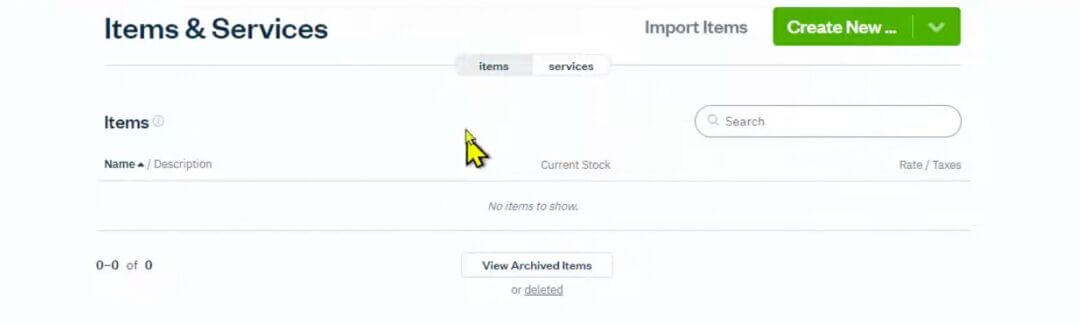
✔ Services (Time-based or project-based work)
Use this for:
- Hourly consulting
- Coaching sessions
- Web design work
- Monthly retainers
- Project fees
Services typically involve:
- Hourly rates
- Flat-fee rates
- Billable hours tied to time tracking
✔ Items (Products or tangible deliverables)
Use this for:
- Physical products
- Digital downloads
- Stock materials
- Equipment rentals
- Packaged offerings
Items usually involve:
✔️ A fixed price per unit
✔️ Inventory tracking (if you want to organize deliverables)
2. Set Hourly Rates vs. Flat-Fee Rates
Go to Items & Services → Add New and choose whether you’re adding an item or a service. For services, FreshBooks gives you two pricing structures:
Hourly Rate: You’ll specify the hourly rate (e.g., $75/hr) and whether time will be tracked manually or via built-in timers
Perfect for:
- Freelancers
- Consultants
- Designers
- Developers
- Coaches
Flat Fee: This keeps your billing predictable and prevents invoice disputes. Use this when your price doesn’t depend on hours:
- Website build: $1,500
- Brand package: $600
- Monthly retainer: $800
Pro Tip: Use consistent naming, e.g., “Logo Design (Flat Fee)” vs. “Design Consulting (Hourly), ”to avoid confusion when reporting income or analyzing project profitability.
3. Add Taxable vs. Non-Taxable Items
FreshBooks allows you to mark each item or service as Taxable or Non-Taxable. Marking items correctly ensures that your sales tax totals stay compliant and automated.
Examples:
✔️ Taxable: Digital products | Physical goods | Certain types of design or marketing services (depending on state laws)
✔️ Non-Taxable: Consulting services (in many U.S. states) | International services | Donations | Education/training (sometimes exempt)
Why Setting Up Items & Services Matters
Doing this step properly sets you up for smoother invoicing and better financial insights. Here’s why it matters:
✔ Consistency: Every invoice uses the same names, descriptions, and pricing—no more guesswork.
✔ Faster Invoicing: Just select the service/item, and FreshBooks fills out the details automatically.
✔ Accurate Reports: Your Profit & Loss, revenue breakdowns, and sales tax summaries become crystal clear.
✔ Fewer Client Disputes: Clear, standardized service descriptions reduce misunderstandings.
✔ Tax Compliance: FreshBooks applies tax rules automatically when items are correctly marked.
Step 9: Enable Tax Categories & Sales Tax
Setting up FreshBooks taxes and sales tax categories now ensures that your invoices are always compliant and your records remain accurate and clean.
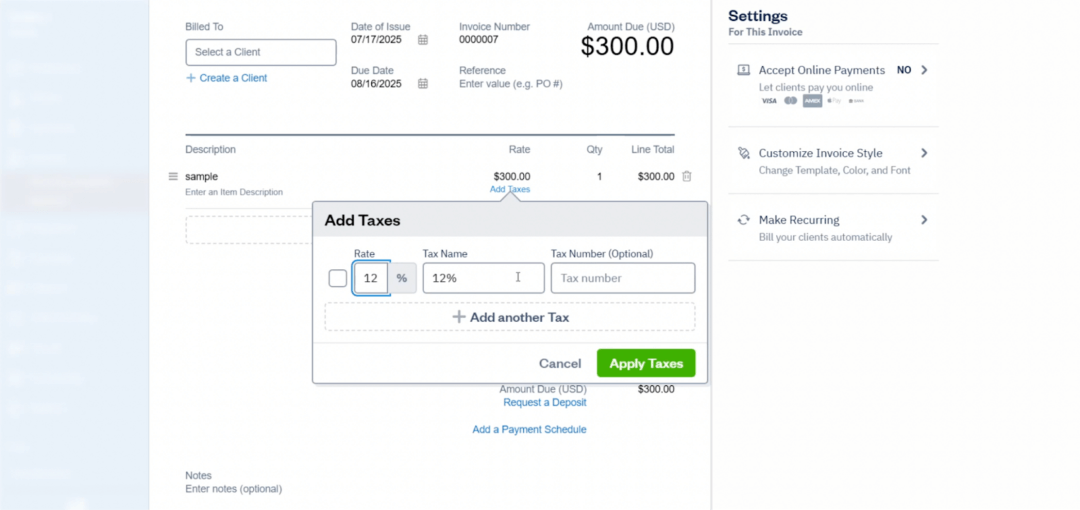
With the right setup, tax season becomes a quick review, not a stressful scramble.
1. Set Up Local, State & National Tax Rates
FreshBooks allows you to clearly name each tax so you can apply it quickly during invoicing. Go to Settings → Taxes.
Here, you can create all the tax rates relevant to your business, such as:
- Local sales tax (city/county)
- State sales tax
- Federal/national tax (for non-U.S. users)
- VAT/GST/HST (for international founders)
- Specialized tax rates depending on your industry
2. Apply Taxes Automatically to Invoices
This ensures every taxable item gets the correct tax applied. No manual calculations or guesswork. Once you’ve created tax rates, you can:
- Mark items/services as taxable
- Choose default tax rates for your invoices
- Automatically apply taxes based on item type
When you create an invoice, FreshBooks will:
- Show a tax column next to each item
- Allow you to choose the appropriate tax
- Automatically calculate totals
- Display clear tax breakdowns for clients
3. How FreshBooks Helps You Stay Tax-Ready
FreshBooks simplifies tax preparation in several ways:
✔ Automatic Tax Tracking
Every time you apply a tax to an invoice, FreshBooks logs it. At year-end, you’ll have a complete tax summary ready for your accountant.
✔ Built-In Tax Reports
These reports are essential for filing taxes, particularly if your state requires the remittance of sales tax. FreshBooks provides:
- Sales Tax Summary
- Tax Collected Reports
- Taxable vs. Non-Taxable Sales Breakdown
✔ Accurate Exports for Bookkeepers
Your tax data can be exported as CSV or shared directly with your accounting professional. No more digging through old invoices or spreadsheets.
Good Bookkeeping Habits for New Founders
Tax compliance becomes much easier when you follow these habits:
✔ Categorize every invoice and expense right away
This prevents errors and keeps your books accurate.
✔ Mark taxable items/services correctly
If you sell both taxable and non-taxable offerings, consistency is key.
✔ Review your tax reports monthly
This helps you catch mistakes early.
✔ Keep receipts and documentation
Necessary for audits and proper expense claims.
✔ Know your state’s tax obligations
Some states require monthly, quarterly, or annual tax filings.
If you’re unsure about your tax obligations, consult a bookkeeper, or pair FreshBooks with doola’s formation and compliance services for ongoing help.
Step 10: Set Up Projects, Time Tracking & Team Members
FreshBooks isn’t just for invoicing. It also helps you manage projects, track your billable hours, and collaborate with team members.
This step is particularly beneficial for freelancers, agencies, consultants, and service providers who bill hourly or manage multiple client assignments simultaneously.
1. Set Up a New Project
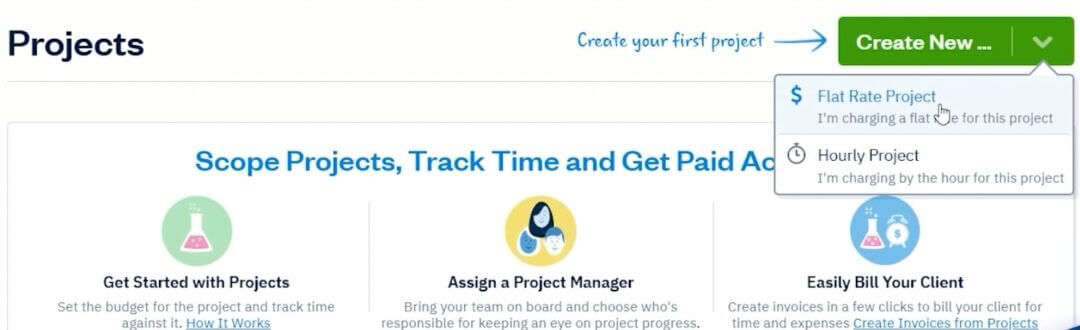
Go to Projects → New Project
FreshBooks gives you two billing options:
Flat-Rate Projects: FreshBooks tracks all time and expenses associated with the project, allowing you to measure profitability.
Choose this if you charge a fixed amount for the entire project, perfect for packages like:
✔️ Website builds
✔️ Branding kits
✔️ Consulting packages
✔️ Retainer agreements
You’ll enter:
- Project name
- Client
- Total project fee
- Deadline (optional)
- Team members (optional)
Hourly Projects: You can also define which services are billable at which rate, if you have multiple types of work (e.g., design vs. consulting).
Use this if you bill clients based on time worked. FreshBooks allows you to:
- Assign an hourly rate
- Track time per task or per team member
- Generate invoices from logged hours
2. Track Time Manually or Use the FreshBooks Timer
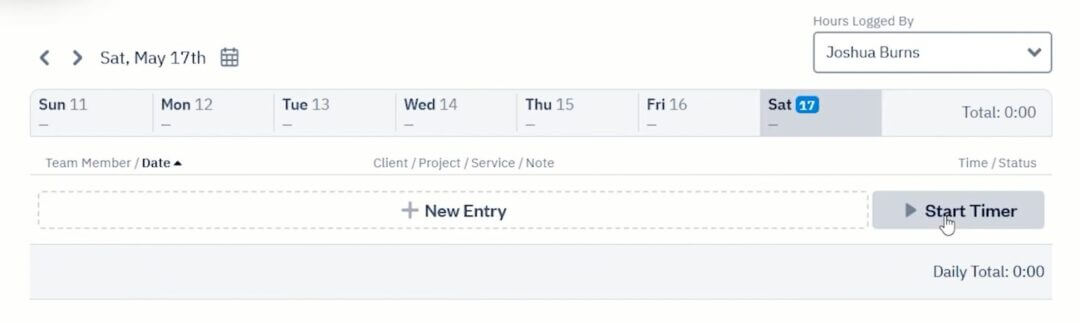
FreshBooks offers three ways to track time:
✔ Start/Stop Timer (Live Tracking)
Perfect when actively working on client tasks. Just click Start Timer, work on your task, and click Stop when done. FreshBooks automatically logs hours under the right project.
✔ Manual Entry
If you prefer to track time in batches, you can:
- Enter total hours at the end of the day
- Log time weekly
- Add notes for each entry
✔ Mobile App Time Tracking
Track time on the go, which syncs instantly with your account.
3. Assign Roles to Team Members
If you work with others, FreshBooks makes collaboration easy. This is especially useful for agencies and growing teams. You can add:
- Contractors
- Employees
- Partners
For each team member, you can define:
- Hourly rates
- Billable vs. non-billable hours
- Which projects can they access
- Permissions for reports, invoices, and tasks
4. How Time Tracking Flows Into Invoices
One of FreshBooks’ most significant advantages is how effortlessly time tracking converts into billable invoices.
This eliminates manual calculations, prevents missed billable hours, and ensures clients get a clean breakdown of your work.
Here’s how the workflow looks:
- Log time under a project.
- Mark hours as Billable.
- When creating an invoice → choose “Add Unbilled Time”.
- FreshBooks adds the exact hours and rates automatically.
- Review, adjust if needed, and send to the client.
Step 11: Use Reports to Track Your Finances
Using FreshBooks financial tracking tools helps you stay in control of your business, make smarter decisions, and avoid surprises at tax time.
These reports are essential for informed decision-making, accurate tax filing, and maintaining a financially healthy business.
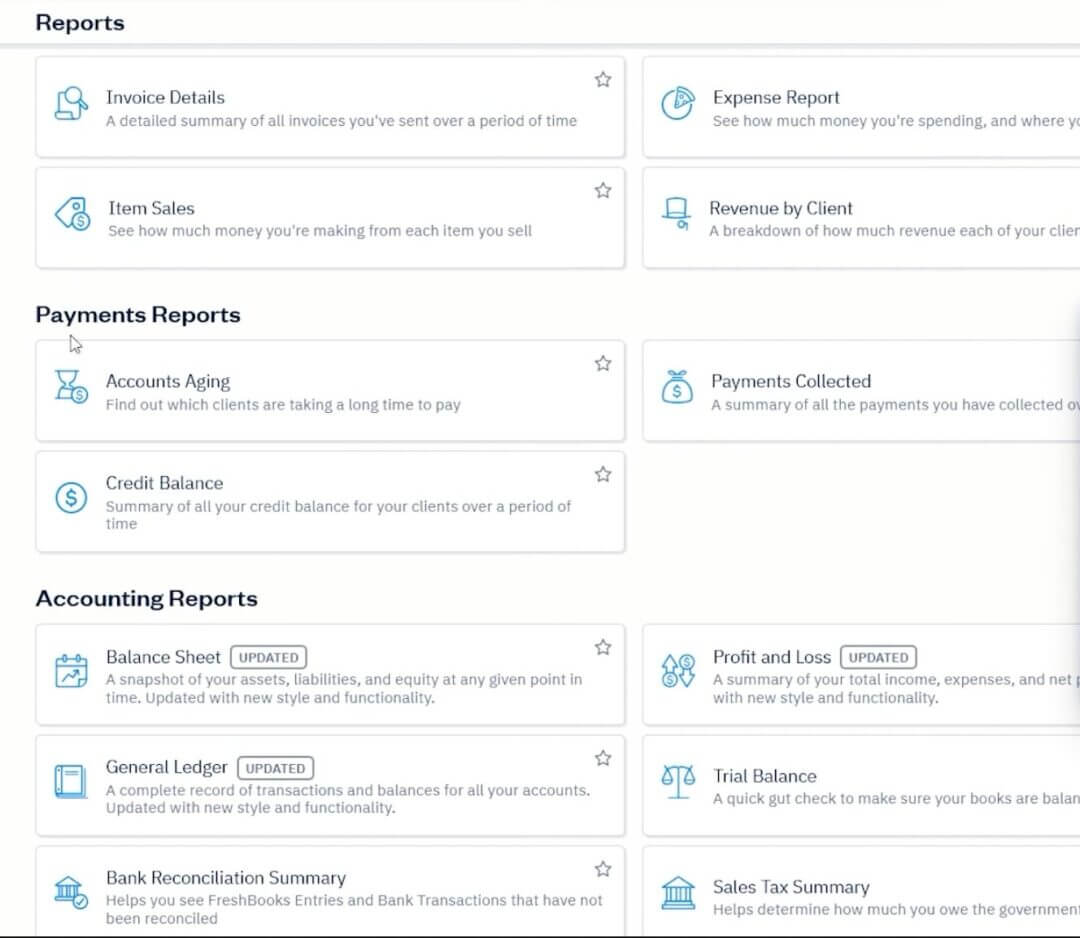
Here are the core FreshBooks reports every beginner should use, and how to read them:
1. Profit & Loss Report (P&L)
What it shows:
- Total income
- Total expenses
- Net profit (or loss) over a selected time period
Why it matters: This is the #1 financial report for any business. It tells you whether you’re actually making money and helps you understand trends month by month.
💡 Pro tip: If your revenue is increasing but your net profit isn’t, it usually means your expenses are rising faster than your income.
2. Expense Report
What it shows: A detailed breakdown of your categorized expenses.
Why it matters: This helps you identify:
- Overspending
- Business deductions (for taxes)
- Subscription creep (unused tools you still pay for)
- Expense trends over time
💡 Pro tip: Review this report monthly to stay on top of your cash flow.
3. Payments Collected Report
What it shows: All payments you’ve received, including:
- Method (credit card, ACH, PayPal)
- Outstanding payments
- Partially paid invoices
Why it matters: This report helps you track completed income and identify overdue invoices quickly.
💡 Pro tip: If you notice a high number of late payments, consider adjusting your payment terms or enabling automated reminders.
4. Aging Report (Accounts Receivable Aging)
What it shows: A list of unpaid invoices, sorted by how overdue they are:
- Current
- 1–30 days late
- 31–60 days late
- 61+ days late
Why it matters: This is one of the most important FreshBooks reports for cash flow.
💡 Pro tip: Follow up on invoices in the 31–60 day range immediately. These are at the highest risk of becoming uncollectable.
5. Tax Summary Report
What it shows:
- Taxes collected
- Taxes paid
- Taxable vs. non-taxable sales
- Taxable expenses
Why it matters: This report is critical for:
- Sales tax filing
- Year-end tax prep
- CPA review
💡 Pro tip: Download this report before every quarterly or annual tax deadline.
How to Read and Use These Reports as a Beginner
FreshBooks visualizes everything with simple graphs and lists, so reports are easy to understand even if you’ve never analyzed financial statements before.
Look for trends:
👉🏼 Is your income increasing or flat?
👉🏼 Are expenses rising faster than revenue?
👉🏼 Are clients paying you on time?
Identify red flags:
- High overdue invoices
- Large unclassified expenses
- Negative profit in multiple months
Make decisions from data:
- Adjust rates
- Reduce expenses
- Improve invoicing workflows
- Plan marketing budgets
Exporting Reports for Taxes or Accountants
This keeps your accountant happy and ensures you’re always audit-ready. FreshBooks makes tax time seamless by:
- Exporting any report as PDF or CSV
- Sending reports directly to your bookkeeper
- Downloading everything in one zipped file at year-end
- Using reports to support loan applications or grant submissions
Step 12: Set Up Mobile App for On-the-Go Tracking
FreshBooks isn’t just a desktop tool. Its mobile app gives you the power to manage your business from anywhere.
Using the FreshBooks mobile app ensures you stay productive and organized, wherever you are.
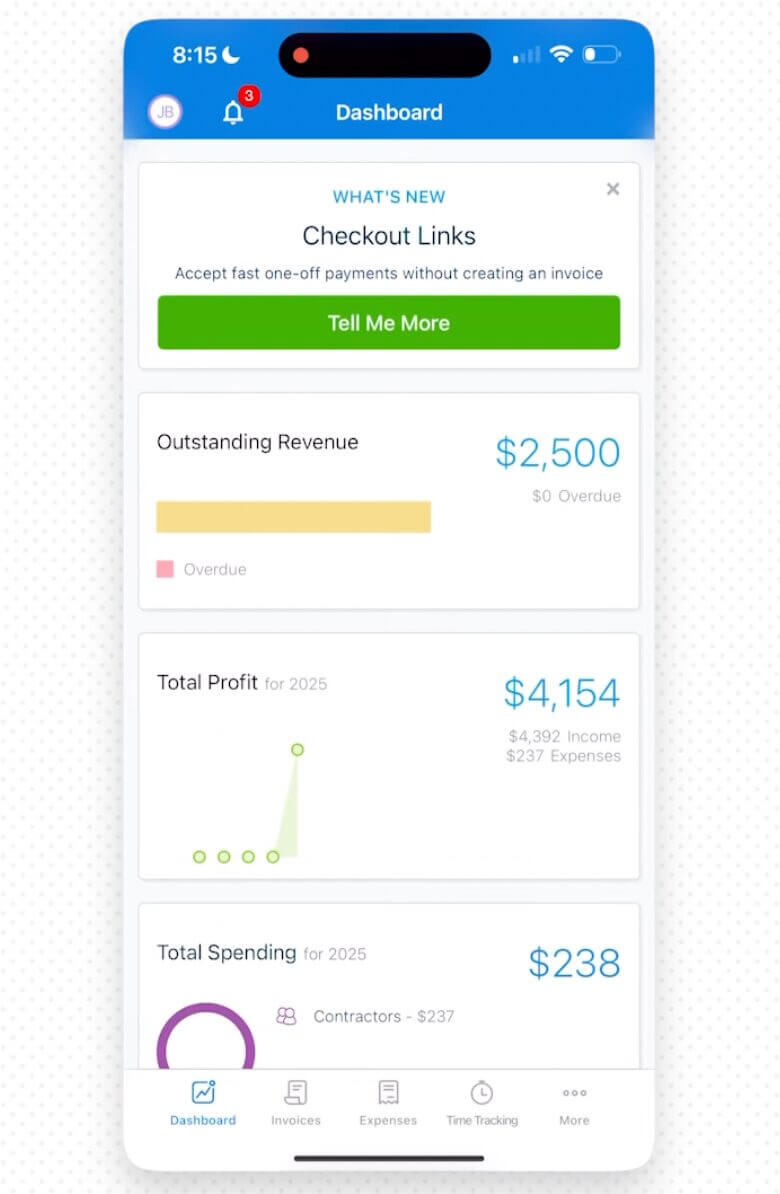
Here’s how to complete your FreshBooks mobile app setup and why it’s a must-have for busy freelancers and business owners.
1. Benefits of Mobile Invoicing
This is especially helpful if you do onsite work, travel often, or run your business on the go.
Once the app is installed (available on iOS and Android), you can create and send invoices directly from your phone.
With mobile invoicing, you can:
✔️ Send invoices immediately after a meeting or job
✔️ Get paid faster because clients receive invoices sooner
✔️ Track when clients view invoices
✔️ Respond quickly to client questions
✔️ Avoid waiting until you’re back at your desk
2. Photograph Receipts with Your Phone
One of the biggest benefits of the FreshBooks mobile app is the ability to capture receipts instantly. This feature alone can save you hours during tax season.
- Open the app → tap Expenses
- Click Add Receipt
- Photograph the receipt using your camera
- FreshBooks automatically scans it using OCR
- It extracts the vendor, amount, and date
- You categorize it with one tap
3. Start and Stop Timers on Mobile
FreshBooks’ built-in time tracker is perfect for freelancers and service providers who bill hourly.
Your tracked time syncs instantly with the desktop version and can be converted into an invoice with a single tap.
- Tap Time Tracking
- Select the project or client
- Tap Start Timer when you begin a task
- Tap Stop when finished
This is especially useful if you work between clients, locations, or devices. You never lose track of billable hours, invoices stay accurate, and time entries remain consistent and organized.
FreshBooks Setup Tips for Total Beginners
Now that you’ve set up the core features inside FreshBooks, here are some simple but powerful habits that will make your bookkeeping smoother from Day 1.
1. Keep Your Categories Simple
Start with FreshBooks’ default categories for expenses, services, and income. Add new ones only if you really need them (e.g., distinguishing “Consulting” from “Design Services”).
Simple categories make your:
- Reports cleaner
- Taxes easier
- Bookkeeping faster
2. Set Up Recurring Invoices Early (Freelancers, This One’s for You)
If you bill clients on a weekly, monthly, or retainer basis, set up recurring invoices as soon as possible.
FreshBooks allows you to:
- Auto-send invoices
- Auto-charge clients (if payment methods are enabled)
- Add late fees
- Track failed payments
This not only saves time, but it also ensures you never forget to bill a client again.
3. Use Automations to Reduce Admin Time
FreshBooks includes built-in automations that beginners often overlook, such as:
- Automatic payment reminders
- Auto-categorizing frequently used vendors
- Bank rules for recurring transactions
- Auto-scanning receipts via OCR
4. Separate Personal and Business Finances Immediately
If you take only one thing from this guide, let it be this. Mixing personal and business expenses is:
⚠️ A tax nightmare
⚠️ A red flag during audits
⚠️ Bad for cash flow clarity
FreshBooks works best when connected to a dedicated business bank account. If you don’t have one yet, doola helps you form a U.S. company, get your EIN, and open a business bank account.
No SSN required for many international founders.
How doola Helps With Accounting, Taxes & US Business Setup

FreshBooks is powerful, but it works even better when it’s paired with the right business structure, proper compliance, and an organized financial foundation.
That’s where we come in. With doola’s formation and compliance services, you can:
🚀 Form your LLC or Corporation (U.S. entity setup done for you)
🚀 Get your EIN + tax IDs. No SSN required for many international founders
🚀 Stay compliant with bookkeeping and annual filings
Together, FreshBooks + doola create a complete system for effortless financial management.
If you’re ready to build your business the right way, structured, compliant, and set up for long-term growth, doola is here to help.
Get started with doola to run your business the right way from Day 1.
FAQs

Is FreshBooks beginner-friendly compared to QuickBooks or Xero?
Yes. FreshBooks is widely considered one of the most beginner-friendly accounting tools on the market.
However, FreshBooks focuses on simplicity with an intuitive dashboard, clean layout, and easy workflows, making it ideal for freelancers, service providers, and small businesses.
Do I need an LLC before setting up FreshBooks?
No, you can use FreshBooks without an LLC. Many freelancers begin with a sole proprietorship and later transition to an LLC as their business expands.
Does FreshBooks automatically handle my taxes?
FreshBooks does not file your taxes for you, but it helps prepare you for tax season by:
- Categorizing expenses
- Tracking revenue
- Organizing receipts
- Summarizing deductible items
- Generating tax-ready reports
Can I use FreshBooks if I’m outside the U.S.?
Absolutely. FreshBooks operates globally, supporting multiple currencies, international invoicing, and a range of global payment methods.
How do I migrate my bookkeeping from Excel or another platform to FreshBooks?
FreshBooks lets you import key data through CSV files, including:
- Clients
- Items and services
- Expenses
- Invoice details
For a smooth transition:
- Clean your Excel sheet or export file first
- Map your categories to FreshBooks’ built-in types
- Import one file at a time
- Review everything before going live
Should freelancers use Projects and Time Tracking if they bill flat rates?
Yes, these features are still helpful even if your pricing isn’t hourly. Even if you never invoice by the hour, time data is incredibly valuable for forecasting workload and improving efficiency.
What reports should small business owners check monthly in FreshBooks?
To stay financially healthy, review these every month:
- Profit & Loss Report: Understand income vs. expenses
- Expense Report: Spot overspending or unusual categories
- Payments Collected: Ensure clients are paying on time
- Aging Report: Track overdue invoices
- Tax Summary: Prepare for quarterly and annual tax filings
Checking these reports monthly helps you avoid surprises, plan budgets, and make confident decisions.

Table of Contents
How to Set Up FreshBooks as a BeginnerHow doola Helps With Accounting, Taxes & US Business SetupFAQsStart Your Dream U.S. Business Today.