
PayPal Payments Set-up for US and Non-US Founders

PayPal now boasts over 430 million active accounts globally. Plus, the platform processed roughly 26 billion transactions and moved around $1.6 trillion in payment volume just in 2024.
In fact, PayPal has become a fast, safe, and easy-to-use online payment gateway that allows individuals and businesses to send and receive money online.
It’s fair to say that more founders are choosing PayPal because it combines global reach with real customer trust, two things you can’t buy or fake.
What This Whitepaper Will Unpack
Here’s how we’re going to help you surpass those drawbacks and get you set up for smooth global PayPal payments:
✔️ Step-by-step PayPal payments set-up for US and non-US founders.
✔️ How to plug PayPal into your store (Shopify/WooCommerce/custom), map your payouts, avoid double counting, and keep your books clean.
✔️ What forms matter (W-9 vs W-8BEN/E vs 1099-K, etc.), thresholds you must know, when a non-U.S. founder still faces U.S. tax rules (hello, U.S. LLC), and how to avoid surprise penalties.
✔️ Real-world blockers and how to bypass them: currency conversion headaches, payout delays, account holds.
✔️ A founder-friendly checklist and template you can use to skip the rookie mistakes.
PayPal Payments Eligibility by Country
PayPal operates in 200+ countries and regions, and supports 25 currencies.
However, not all countries get the full PayPal experience. Broadly speaking, support falls into two categories:
- Full support: You can open a business account, accept payments, link a local bank, and withdraw funds in your local currency.
- Limited support: You might only be able to receive payments (not withdraw locally), or send money only, or have other restrictions.
Here are PayPal PayPal-supported countries with full or near-complete access:
- Poland: All features supported, including business tools and local withdrawals.
- Philippines: A popular choice for freelancers; send/receive payments and link to local banks.
- Japan: Deep local integration, including ATM support and eCommerce compatibility.
- Egypt: Offers personal and business accounts with standard services.
- India: Users can receive international payments but cannot make domestic transfers via PayPal.
- Greece, Cyprus, Colombia: All standard PayPal services are available, including withdrawals and business features.
You can check the entire list of countries here.
PayPal Payments Setup Prerequisites
It doesn’t take a lot to start PayPal payments setup. Gather the details and documents below for setting up PayPal payments seamlessly.
1) Business Entity (LLC, Corporation, Sole Proprietor, etc.)
Anti-money-laundering (AML) and corporate transparency rules require payment providers to know who ultimately owns and controls the business.
In that context, you’ve to declare your legal entity type and satisfy PayPal’s KYB requirements, including disclosure of beneficial owners and a control person.
What to prepare:
Your entity details (legal name, jurisdiction, registration number). Plus, give out details about beneficial owners (≥25% equity) and one controlling individual (e.g., CEO/Managing Member).
Please note: There can be account limitations or on-hold payouts if ownership and control are not verified on time.
2) Bank Account Requirements (ACH / Local rails / SWIFT context)
Settlement and risk controls require a verifiable, in-country payout destination with matching account holder details.
You need to link a bank account that PayPal can verify and pay out to, typically in the same country as the PayPal account.
In the U.S., this is ACH-enabled; elsewhere, withdrawals usually run on local clearing rails (not manual SWIFT wires).
What to prepare:
Link a bank via Instant verification (preferred) or micro-deposits. For Instant, authenticate once with your bank; verification is immediate. For micro-deposits, PayPal sends two small credits within ~3 business days; enter both exact amounts in Wallet to confirm.
Before go-live, validate your account country’s receive/withdraw capabilities in PayPal’s official country & feature reference and confirm intended currencies against PayPal’s supported list.
Then verify in-product that a local bank can be linked for withdrawals. Record the findings in your payment operations runbook (country, feature level, currencies, bank linkage).
3) E-mail & Contact Details (Dedicated business email and phone)
Buyers and PayPal’s risk checks require easily accessible contact information, clear pricing, and defined refund/return and privacy policies.
This includes a professional, monitored email and phone number for account operations and buyer support, as well as visible contact and policy pages on your storefront.
What to prepare:
A dedicated support inbox and phone line. Plus, live site pages for Contact, Pricing, Refund/Returns, Privacy, and (if applicable) Delivery.
4) Tax Information (EIN, SSN, ITIN, VAT, GST, etc.)
Payment platforms must collect taxpayer data and certifications to meet statutory reporting and withholding rules (e.g., Form 1099-K reporting by third-party settlement organizations in the U.S.; FATCA status; local VAT/GST where applicable).
You are responsible for reporting all business income whether or not you receive an information return.
As of tax year 2025, Congress’ One Big Beautiful Bill Act of 2025 restored the pre-ARPA 1099-K threshold: platforms issue Form 1099-K only if payments exceed $20,000 and there are more than 200 transactions for the year (2024 remained a $5,000 transition threshold under prior IRS relief.)
Always confirm the threshold in effect at publication time.
What to prepare:
A valid Taxpayer Identification Number (TIN), SSN, EIN, or ITIN, and a completed Form W-9 (name/TIN must match IRS records).
If a valid TIN isn’t provided, platforms may apply backup withholding (24%) until certification is complete. Keep legal names consistent across PayPal and tax records.
Complete FATCA/foreign status certification in PayPal (e.g., W-8BEN for individuals, W-8BEN-E for entities) and refresh it before expiry or when facts change. Follow the in-product prompts (Resolution Center/Notifications).
5) Prohibited Business Categories
These are activities that PayPal either bans or restricts, such as illegal items, certain weapons, explicit adult content, unlicensed drugs, gambling, pyramid schemes, and counterfeit goods.
These restrictions are in place due to network rules, legal obligations, and PayPal’s brand and risk tolerance.
Ignoring these guidelines and restrictions could lead to account limitations, frozen funds, or termination under the Acceptable Use Policy (AUP).
What to prepare:
Review your product catalog and business model against PayPal’s Acceptable Use Policy and its help center summary.
6) Document Checklist (KYC/KYB package)
PayPal needs to verify identity, business existence, ownership/control, banking, and website compliance before (and sometimes after) you start processing payments.
What to prepare (by category)
1) Identity (for owners and authorized users)
Government-issued photo ID (passport, national ID, or driver’s license). You need to provide proof of address (typically issued within the last 12 months). Next, upload via the Resolution Center when prompted.
2) Business existence
Formation/registration evidence (e.g., Articles of Organization/Incorporation, tax certificate, or equivalent local document). All these documents must be legible and should match the business details on your PayPal profile.
3) Ownership & control (KYB)
You need to identify each beneficial owner (≥25% equity) and one control person (e.g., CEO/Managing Member). PayPal collects both ownership and control information.
4) Bank account (for payouts)
You need to link a bank account from the same country as your PayPal account. You can confirm it either instantly or by verifying two small deposits (usually between $0.01 and $0.99 each) that will arrive in about 3 business days.
Once received, enter the exact amounts in your PayPal Wallet to complete the process.
5) Website / app compliance
Your site or app must include publicly accessible Contact, Refund/Return (or Cancellation), and Privacy pages. If pricing is available only to members, state clearly that pricing is available after login.
These disclosures are reviewed during onboarding and may be re-checked in ongoing risk assessments.
Keep in Mind:
Expect extended reviews, delayed settlements, rolling reserves, or account limitations until documentation is complete and consistent (name, address, and entity details must match what’s on file).
PayPal Payments Setup Process for US Founders
Here is a step-by-step guide to help you set up PayPal payments if you are a U.S. founder..
Step 1: Setting up a PayPal Business Account
Let’s begin by creating your PayPal Business account. Here are the steps:
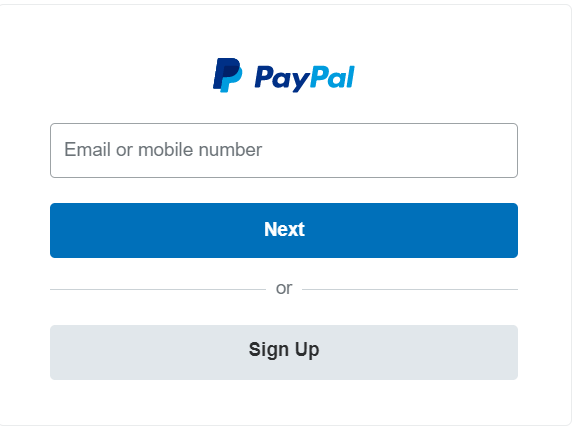
Step 1: Make sure you’ve got an email set up with PayPal. If not, just hit Sign Up to create one, it’s free for both Personal and Business accounts.
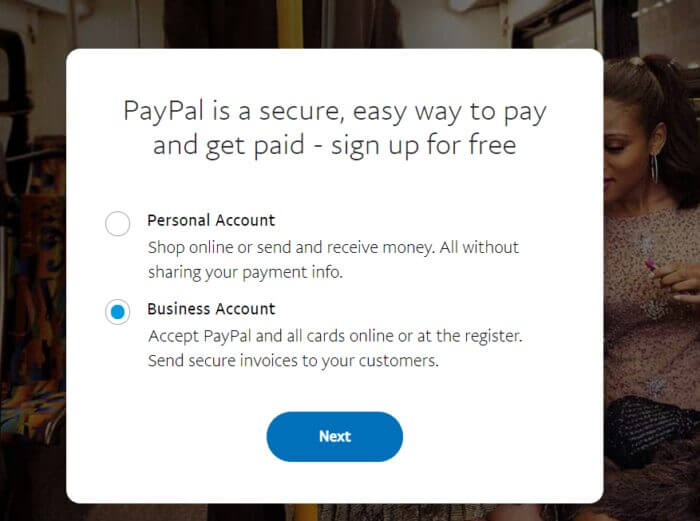
Step 2: Next, you’ll be asked what type of account you want to set up. Select Business Account and click Next.
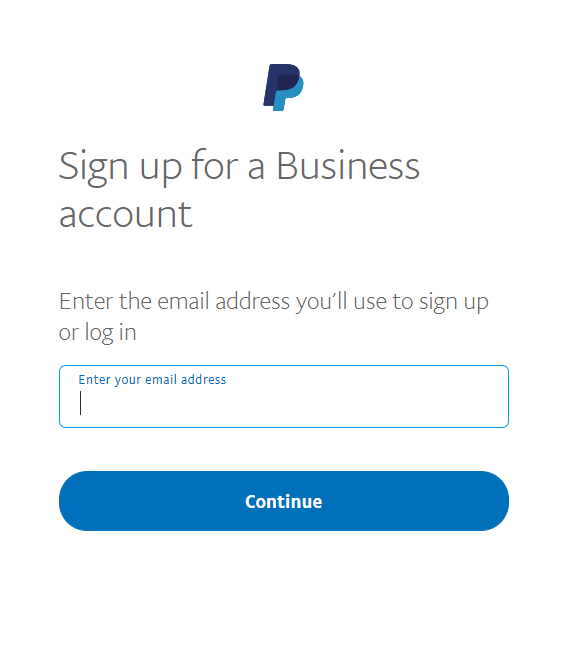
Step 3: On the next screen, you’ll be asked to enter the email address you want to use to set up your PayPal business account. Enter the email you want to use, and then click Continue.
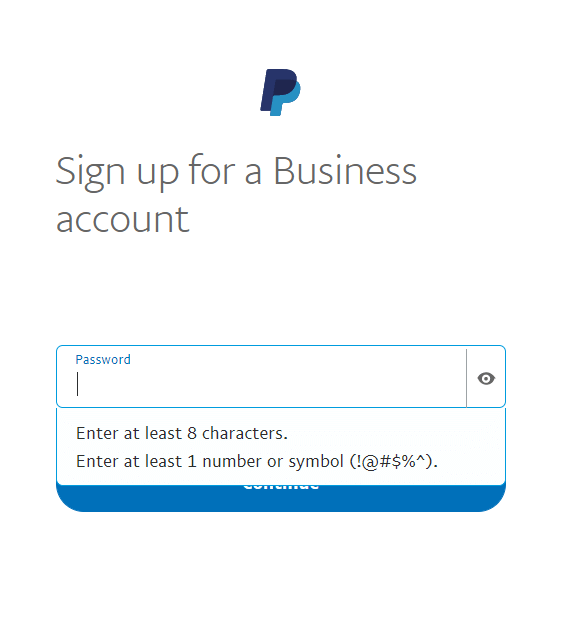
Step 4: After you enter the email address, create a strong password. Your password must be at least eight characters and contain at least one number and symbol.
Step 5: Next, you need to verify your email. Click “Confirm your email,” located on the “Summary” page. An email will be sent to the email account that you set up your PayPal account with.
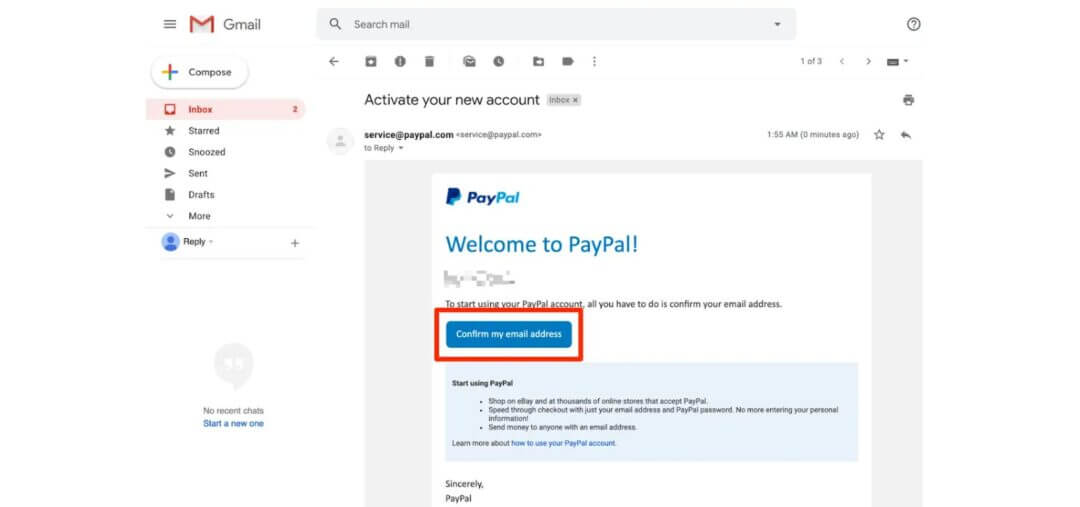
Check your email. If you don’t find an email from PayPal already, return to the PayPal.com page and click “Send Email.” The email will read “Activate your new account” in the subject.
Open it, and click “Confirm my email address.”
Step 6: After you verify your email, you’ll see a screen titled “Tell us about your business.” On this page, fill in your business contact name, business name, and business address.
You’ll also see three documents: E-communication Delivery Policy, User Agreement, and Privacy Statement. Skim them (or read fully if you want), then tick the checkbox to confirm you agree.
When you’re ready, click Agree and Create Account. That’s it.

Step 7: On the next page, you’ll need to describe what kind of business you run.
Choose the option that fits you best from the dropdown list.
Depending on what you pick, PayPal might ask for a few extra details, like what products or services you sell, your average monthly sales, your website link, or your business tax ID (EIN).


Based on the information you give,you may be offered the PayPal Business Debit Mastercard. It lets you access the money in your PayPal account quickly, similar to how you’d use a regular bank debit card.
- No annual fee once you’ve received at least $250 in payments.
- You can use the card balance anywhere the Mastercard logo is accepted.
- You’ll earn 1% cash back each month on select purchases.
If you want the card, check the box to accept the offer. If you don’t, uncheck it. Then click Continue.
Step 8: Next, you’ll be asked to provide some personal information to set up your account, including the last four digits of your social security number (SSN), your birth date, and your home address. PayPal does not run a credit check with this information.
Once everything’s filled in, click Submit.

Step 9: After you submit your details, your PayPal Business account is created and ready to use. You’ll land on a page where you can choose from a set of features for your account.
Pick the option that best matches the products or services your business sells.

Step 10: Choose how you’d like to sell. At this stage, PayPal is asking how your business plans to accept payments.
You need to select one or more options that match the way you sell your products or services. After selecting, click “Next” at the bottom to continue the setup.

| Here’s what each option means so you can choose correctly:
✔️ Take payments on your website or in your app Choose this if you have an e-Commerce website or a mobile app and want customers to pay online directly using PayPal or their cards. Example: You run an online store or SaaS platform. ✔️ On a marketplace Choose this if you sell through a third-party marketplace such as eBay, Etsy, or Shopify. Example: You list your products on Etsy or another platform that supports PayPal. ✔️ Send invoices or estimates Choose this if you send invoices manually to clients for services, freelancing, or project-based work. Example: You’re a consultant or service provider who bills customers after completion. ✔️ Use a card reader to take payments in person Choose this if you have a physical store, stall, or event booth and want to use a PayPal card reader for in-person transactions. ✔️ Collect credit card info without swiping a card Choose this if you accept payments over the phone or via manual entry (for example, taking a customer’s card details to process a payment). ✔️ Create a link you can use to request payments Choose this if you want to send payment links via email, WhatsApp, or social media to request payments without a website. Example: You’re a freelancer, local seller, or service provider who shares links to get paid quickly. |
Step 11: Select how your customers purchase your products. At this step, PayPal is asking how your customers usually make their purchases. You need to select the option (or options) that best describe your business model.
After making your selection, click “Next” to continue setting up your PayPal payment options.

| Here’s what each choice means:
✔️ Buy in a Single Transaction Choose this if your customers make one-time purchases. For example, buying a product, paying for a service, or completing a single order. ✔️ Subscribe on a Recurring Basis Choose this if your customers pay on a regular schedule, such as monthly, quarterly, or annually. Example: Running a subscription box, SaaS product, online course, or membership program. |
Step 12: In this step, you need to decide how you’d like to set up your checkout system, based on your technical comfort level and how customized you want your payment experience to be. You need to pick one option that best matches your business setup and technical skills.
For example, Choose <A Prebuilt Solution That Doesn’t Require Coding> option if you want a ready-made PayPal setup that can be added to your website or store without any coding or developer help. It’s quick, beginner-friendly, and ideal for small business owners or freelancers who just want to start accepting payments fast.

Congratulations! Your PayPal business account is all set up!


Step 2: Link Your Bank Account to PayPal
Here’s the next phase of your PayPal journey. You need to link your bank account to PayPal to start accepting payments.
Connecting your bank account to PayPal simplifies money management, especially fund transfers. This integration allows easy movement of money between your bank and PayPal.
The primary benefit is effortlessly sending money from your bank to your PayPal balance for online purchases or sending funds, often without extra fees.
Conversely, it facilitates withdrawing money from PayPal to your bank, making received funds available for everyday use. Withdrawal options include standard (few business days) or instant (small fee) transfers.
Essentially, linking your bank to PayPal creates a seamless financial bridge, enhancing control and accessibility of your funds across both platforms.
Let’s Get to the Steps
Now that your PayPal business account is all set up and ready, let’s walk through the steps to link your bank account to PayPal.
You can link your bank account to PayPal via two ways:
- Instantly by logging into your bank
- Manually entering your bank details and confirming small deposits
Whether you’re using a desktop PC or the mobile app, you can follow the steps described below
Option 1: Link Instantly (via Bank Login)
- On a PC, open Banks and Cards, then click Link a New Bank.
- On a mobile device, tap More, then open Settings, then go to Cards and Banks, then tap Link a Card or Bank Account. If you cannot find it, tap the (+) sign.
- Search for your bank or select it from the list.
- Log in using your bank credentials. PayPal may use a third-party provider to verify your account and check your balance or transactions for the next 90 days. You can revoke these permissions in the settings section.
- Depending on your region, confirm the link by opening Finance, or open Pay and Get Paid, then open Banks and Cards, and select the bank account you want to confirm.
Option 2: Link Manually (1–7 Business Days)
- On a PC, open Banks and Cards, then click Link a New Bank.
- On a mobile device, tap More, then open Settings, then open Cards and Banks, then tap Link a Card or Bank Account. If you cannot find it, tap the (+) sign.
- Select Link Another Way, then enter your bank details.
- Wait for PayPal to send small deposits to your bank account. These may be:
- One deposit containing a four-digit code, or
- Two very small deposits, each less than USD 0.99, GBP 0.01, or an equivalent amount in your local currency.
- Once you receive the deposits, open Finance, or open Banks and Cards, and enter either the code or the exact deposit amounts. For example, if you received deposits of USD 0.12 and USD 0.34, enter 0.12 and 0.34, then click Submit to confirm.
- If you do not see the deposits, open the Money page and request that PayPal resend them, or contact PayPal Business Support for help.
- If your business bank account needs multiple authorizations for debits, you may need to print, sign, and mail a Bank Funding Instruction form to complete the linking process.
| Information About Bank Account Limits
While linking a bank account to PayPal is usually straightforward, there are some limitations to keep in mind. You can typically link a maximum of 8 bank accounts to one PayPal account. Conversely, a single bank account can only be linked to a maximum of 2 PayPal accounts simultaneously. If you attempt to add a bank account that’s already connected to two PayPal accounts, the connection will fail. However, you can easily unlink bank accounts from your PayPal account. If you need to link your bank to a new PayPal account but it’s currently connected to another, simply remove it from the existing PayPal account to free it up for re-linking. |
| Why can’t I link my bank account to PayPal?
There are several common reasons why you might be unable to link your bank account to PayPal. These include entering incorrect bank account details, a discrepancy between the names on your PayPal and bank accounts, or security and verification restrictions imposed by PayPal. Please verify your bank details carefully. If the problem persists, contact PayPal support for help. Related Read: PayPal Business Account Verification Failed! What Now? |
Confirm Your Bank and Cards
After signing in to your PayPal account, the dashboard shows your PayPal balance, which is the available money in your PayPal account.
Selecting “Transfer funds” lets you move your PayPal balance into your bank account once you link a bank. You can also see recent activity and a section to link your banks and cards.

Here’s how you can link your banks and cards:
When you select “Link a card or bank,” you can link a credit or debit card to shop online using PayPal, and you can link a bank account to withdraw funds from your PayPal balance.
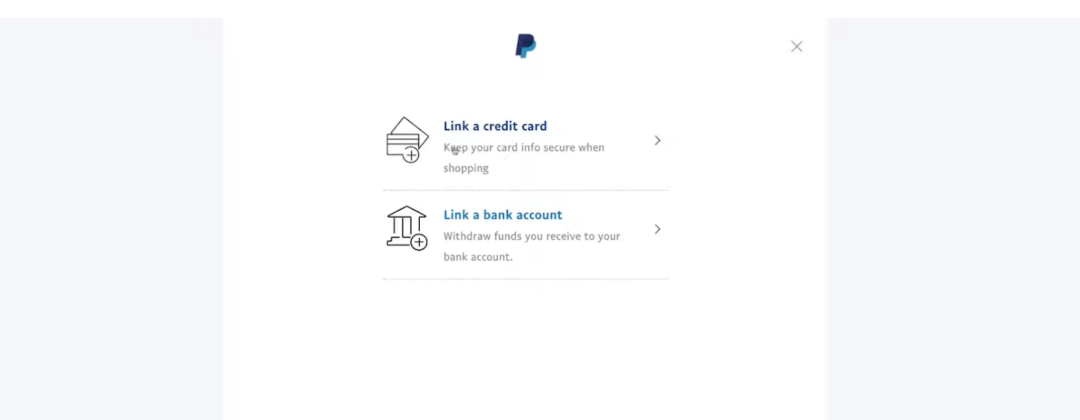
You should link a card if you plan to shop online with PayPal and link a bank account if you plan to receive payments and withdraw them to your bank.
Next, exit out of this page and go back to the dashboard.

From the dashboard, you can send money or request money.
Under “More,” you can get the app, create an invoice, create an estimate, and open the Resolution Center, where you can dispute transactions.
For example, if you did not receive a product or service you paid for a business with PayPal, you can request for a refund under Resolution Center, within PayPal.
How to Send Money
Step 1: From the “Pay & Get Paid” page, you can now send money to other PayPal users. Just enter the name of the recipient, username, email address or mobile number.
Next, add the amount of money you want to send to the recipient associated with PayPal.

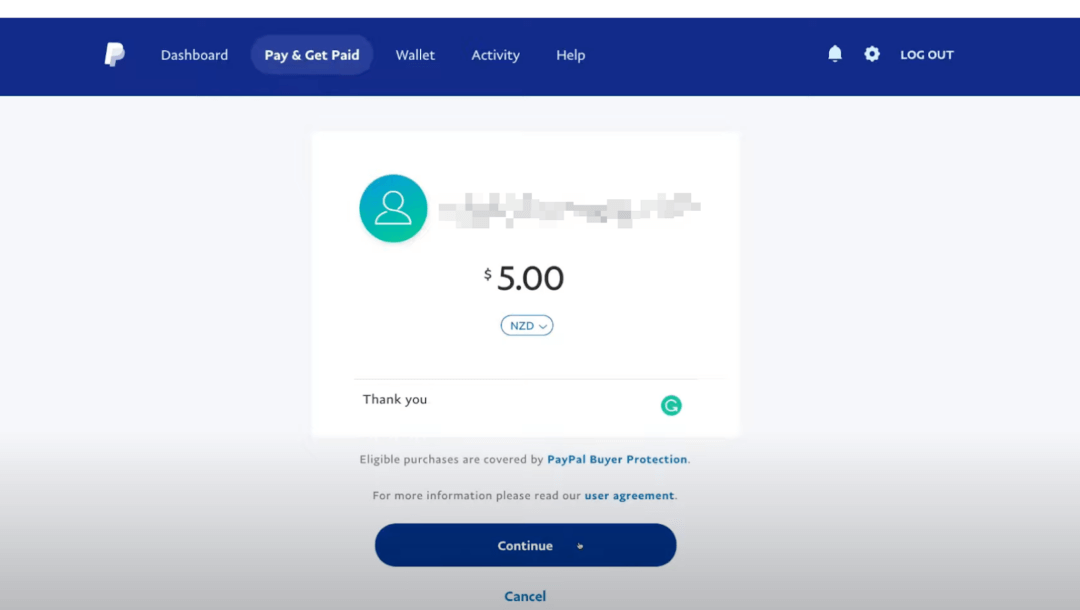
Select your preferred currency and then add a note for the recipient, if you would like. For example, you can just add “Thank You”, and then come down and click “Continue”.
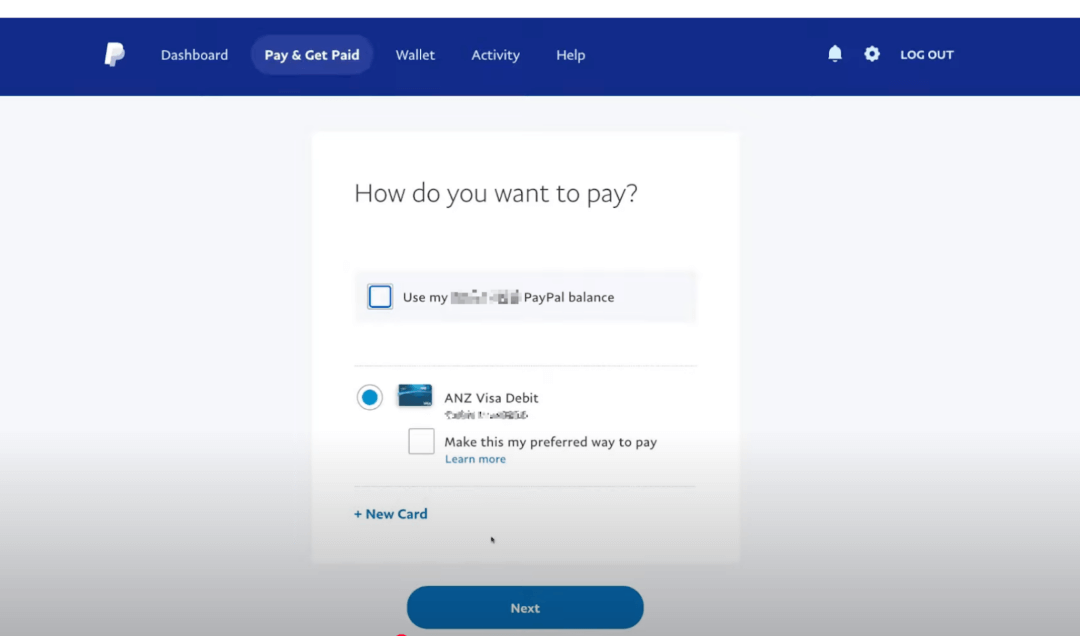
Step 2: Next, you’ll be asked, “How do you want to pay”. You can either use your existing PayPal balance or use your Debit card to make the payment.
You also have the option to add new cards if you would like to. Once you have selected your payment method, click on “ Next”.
Step 3: Choose the correct payment type. If you are paying for an item or service, select “Paying for an item or service,” which enables buyer protection.

If you are paying a friend, you can then change it to “Sending to a friend.”
The associated fee for the transaction gets displayed. If applicable, you can select a shipping address.

When everything looks correct, click “Send Payments Now.”

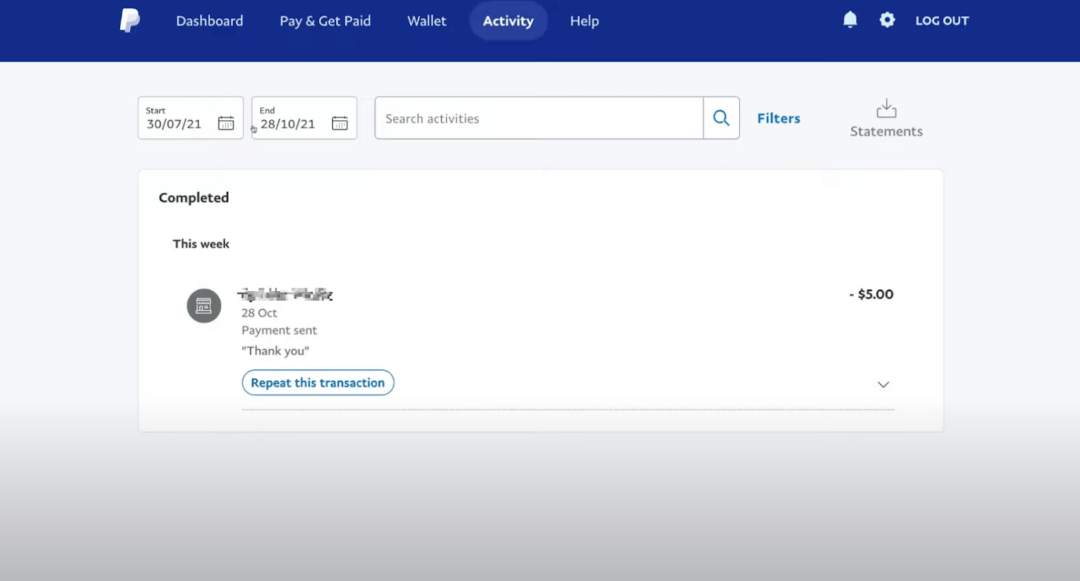
You’ll receive a notification once you have sent the payment. You can view all the transactions for a specific period in the “Activity” page.
Step 3: Get Ready to Verify Your Identity for PayPal’s KYC Process
For regulatory reasons, PayPal must confirm your personal details (name, address, date of birth) or your company information. This is called the Customer Identification Process (CIP). This is done to prevent fraud and money laundering.
Plus, verification ensures the security of users’ accounts and transactions, safeguarding both PayPal and its customers.
PayPal first tries to verify your identity or business using national databases. If that fails, you’ll be asked to upload documents to your PayPal account.
Here are the key steps:
Step 1: Log in to your PayPal account and go to the Resolution Center. Next, Click on “Go to Account Limitations“. Click “Resolve“ beside each required steps and follow the instructions.
Step 2: Next, you’ll need to upload relevant documents.

The most common documents required for PayPal identity verification include:
- A government-issued photo ID (e.g., passport or driver’s license)
- Proof of address (e.g., utility bill, bank statement) within the last 12 months
- Business registration documents, TIN, Details of business and management structure, Articles of incorporation or business licenses
- In some cases, a selfie or video for facial recognition
You can photograph these with your phone and upload them.
PayPal aims to review documents within two business days, though it can take longer. PayPal will notify you once their verification is complete.
If you have multiple PayPal accounts, you must upload documents separately for each account.
Required Documents to Verify Your Business with PayPal
A quick, scannable checklist of exactly what PayPal accepts (and rejects) for business verification.
✔️ Proof of Identity (Person): Used to confirm who you are.
Must show: name, DOB, issue/expiry dates, ID number.
Accept: Passport, driver’s license (plastic card), government ID card, other gov’t photo ID.
Reject: Military IDs, student/medical cards, expired/blurred/partial docs.
Note: If your name changed, be ready to show name-change proof.
✔️ Proof of Address (Person or Business): Used to confirm a physical address (no P.O. Boxes). Must be dated within 12 months.
Accept: Utility bill, phone bill, vehicle registration, 401k/brokerage statement, lease/grant deed, bank/credit card statement, current ID/driver’s license with address.
Reject: Envelopes, invoices/receipts/waybills, expired/partial/obscured docs.
✔️ Proof of SSN/Tax ID (Individual/Sole Prop): Used to confirm your SSN/ITIN or tax identity. Name must match PayPal records.
Accept: SSN card, IRS letter assigning SSN/ITIN, 1099 (≤12 months), W-2 (≤12 months), third-party prepared tax docs (signed, ≤12 months), pay stub with full SSN (≤12 months).
Reject: Self-completed forms, self-prepared tax docs, envelopes, expired/partial docs.
✔️ Proof of Business Identity (EIN/TIN): Used to confirm the business tax registration. Name/EIN must match PayPal.
Accept: IRS EIN/TIN assignment letter, real-time EIN/TIN screen print, prior-year business tax return (signed by third party), current bank/credit statement showing truncated EIN/TIN (≤12 months), other gov’t docs showing full name + 9-digit EIN/TIN (≤12 months).
Reject: Self-prepared tax returns, applications, expired/partial/obscured docs.
✔️ Proof of Business Address: Use to verify the company’s physical address (≤12 months). No P.O. Boxes.
Accept: Current utility/phone bill, current insurance or tax statement, business license/permit, Certificate of Good Standing, bank/credit statement with full business name, Secretary of State filings (e.g., Certificate of Incorporation, Partnership Agreement).
Reject: Envelopes, invoices/receipts/waybills, expired/partial/obscured docs.
✔️ Proof of Business Existence: Used to show the business is registered and authorized to operate (active status).
Accept: Government business license/permit, Certificate of Good Standing, Secretary of State registration documents (e.g., Incorporation, Partnership).
✔️ Freshness: Dated within the last 12 months.Quick Prep TipsExact match: Business name and address must match your registrations.
✔️ Legible scans: All four corners visible; no crops, blur, glare, or edits.
✔️ Recent dates: Where required, ensure documents are ≤ 12 months old.
✔️ Physical addresses only: P.O. Boxes are not accepted.
✔️ Upload format: Clear PDFs or high-quality images (color preferred).
Step 4: Connect PayPal to Your Store or Platform
Before connecting, make sure your PayPal Business account is completely set up, verified, and active. If you haven’t yet verified your business details or linked and confirmed your bank, you should do so now. Integration works best with a fully live account.
PayPal is a globally recognized payment platform, operating in 200 countries/regions and supporting 25 currencies. Its widespread consumer adoption has led to three distinct integration options for businesses, designed to suit various sizes, target audiences, and operational needs.
3 Ways To Integrate PayPal With Your Website
- PayPal Buttons: Ideal for businesses selling a limited number of products.
- PayPal Payments Standard: A complete payment processing solution that integrates directly with most popular e-commerce platforms.
- PayPal API integration: Suited for larger enterprises with high sales volumes that require a tailored checkout experience.
Let’s dig deeper.
1. Add A Payment Button To Your Website
If you’re only selling a few products on your website, a simple PayPal checkout button is the fastest and simplest way for you to meet your needs.
The – ‘Wired’ magazine (for example), added the PayPal button to their website so readers could easily sign up for a subscription in just a few clicks. In this case, PayPal will automatically set up a yearly automatic renewal and collect payments for the company on a recurring basis.

This removes the hassle of setting up a shopping cart and all of the other extra steps when setting up payments for your customers.
All you require is a PayPal account and a button that says “Buy Now,” or “Subscribe.”
With a hosted checkout, clicking the PayPal button sends the shopper to the official website to enter their details and finish paying.
After the payment goes through, you’ll get a confirmation email and the customer receives a receipt at the same time.
PayPal has different buttons for different purposes including:
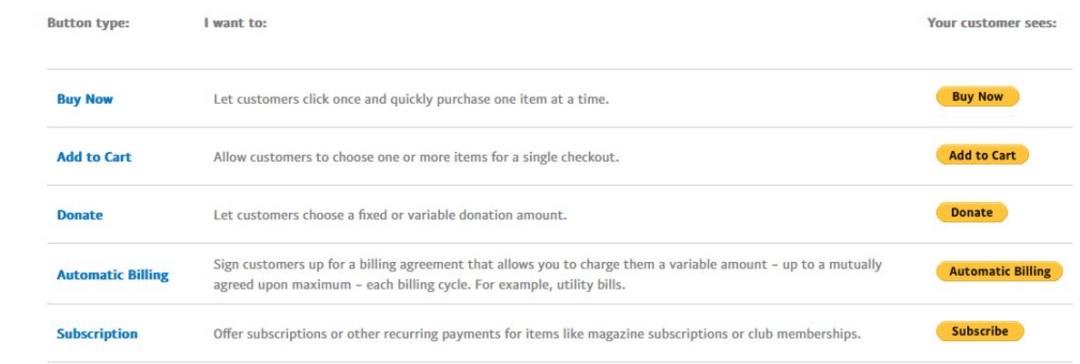
- Buy now: This button allows a customer to purchase a single product and check out immediately. Best for: Small businesses or single-product pages where buyers can complete their purchase in one click.
- Add to Cart: Lets customers add multiple items to a cart before completing the payment. Best for: Online stores or e-commerce sites with a range of products (multiple SKUs).
- Donate: Enables you to accept donations in either fixed amounts or any amount the donor chooses. Best for: Nonprofits, charities, or creators who accept flexible contributions (like “pay-what-you-can” models).
- Automatic Billing: Automatically charges a variable amount at set intervals, up to an agreed limit and duration. Both the merchant and the customer define the maximum charge and the billing period in advance. Best for: Services with fluctuating monthly fees, like utilities or metered usage.
- Subscription: Allows customers to sign up for recurring payments on a fixed schedule (weekly, monthly, annually, etc.). Best for: SaaS platforms, membership programs, subscription boxes, or magazines that bill customers regularly.
How To Add A PayPal Payment Button
Here are the steps involved in adding a PayPal payment button:
- Create or Upgrade to a PayPal Business Account. If you don’t already have one, sign up or upgrade your existing account.
- Log In and Go to the App Center. Access your PayPal dashboard and open the App Center.
- Select “PayPal Checkout”. This option lets you create and manage your payment buttons.
- Click “Choose a Way to Integrate.”
- Start the Setup for Individual Items. This is where you’ll define what the button will do.
- Customize Your Button. Enter the item details, price, applicable taxes or fees, and adjust the design to match your website’s style.
- Copy and Paste the Code. Once generated, copy the HTML code and paste it into your website where you want the button to appear.
There are no setup fees, and the process takes just a few minutes to start accepting payments.
But do keep these things in mind:
✔️ You’ll need to create a separate button for each product or service, since one button can’t be reused for multiple listings.
✔️ For digital goods, PayPal often favors the buyer in dispute cases, which may leave sellers at a disadvantage if a chargeback occurs.
2. Add PayPal Payments Standard (Fast + No-Code)
PayPal integrates well with most major e-commerce platforms like WooCommerce, Shopify, Wix, and more.
With PayPal Payments Standard, PayPal takes care of the entire checkout and payment processing for you.
The setup is straightforward and doesn’t require a developer.
If you’ve got a PayPal Business account and a few spare minutes, you can start accepting payments right away.
How To Setup PayPal Payments Standard
Here are the steps involved in setting up PayPal Payments Standard:
- Confirm Compatibility: Make sure your shopping cart/platform supports PayPal.
- Open Your Admin Panel: Log in to your store’s dashboard.
- Choose PayPal Payments Standard: Find your payment settings and select it as the provider.
- Link Your Account: Sign in with your PayPal Business credentials to connect.
The exact clicks vary by platform, but the flow above is the core pattern across most e-commerce builders.
Up next, we’ve laid out step-by-step guides for popular sites like WordPress, Wix, and Squarespace.
3. Set Up A Custom API Integration With Your Website
Go the API route if you’ve got a connected tech stack and access to a developer.
Using PayPal’s JavaScript SDK (and legacy NVP/SOAP if needed), you can generate and manage lots of PayPal Payments Standard buttons from code, wire up automatic order fulfillment, and store transactions in your own database, so you control the checkout flow end-to-end.
What You Get
- Instant Payments: Drop the code in and start collecting money right away.
- Operational Control: Auto-fulfill orders, write to your DB, and customize post-payment logic.
- Deeper Analytics: Capture granular user + transaction data to improve UX and conversion.
Note: This path is aimed at developers or platforms that provide shopping carts to merchants.
How To Set Up PayPal API Integration
This section might sound little complicated but gets done within a few clicks:
Step 1: Log In And Get Your API Credentials
- Sign in to your PayPal Business Account at paypal.com.
- Click the Settings gear icon in the top-right corner.
- Go to Account Settings → Account Access.
- Under API Access, click Update.
- Choose Manage API credentials.
- Here you’ll find two ways to connect:
- NVP/SOAP API — older format still supported for server-to-server calls.
- REST API — modern standard that uses client ID and secret key.
- Click “Show” or “Generate API Signature” to view your credentials.
- Copy and securely store your API Username, Password, and Signature, or your Client ID and Secret if you’re using the REST API.
Step 2: Choose How To Host Your PayPal Buttons
You have two options here:
- Host on PayPal: PayPal keeps the button data secure on their servers.
- Host on Your Own Server: You encrypt and manage your button code manually.
Developers usually prefer self-hosting because it allows styling flexibility and integration with backend logic.
Step 3: Create The Buttons
You can generate custom buttons directly in your PayPal account:
- Go to “Pay & Get Paid” → Accept Payments → PayPal Buttons.
- Click “Create a Button” and select a button type from Buy Now, Add to Cart, Donate, Subscribe, or Automatic Billing.
- Enter your item name, price, currency, and other details.
- Customize appearance. Choose color, size, and label text.
- Save and copy the HTML or JavaScript code snippet generated by PayPal.
If you’re integrating through the API, your developer can dynamically create buttons with PayPal’s JavaScript SDK instead of manually generating them.
Step 4: Add The Button Code To Your Website
- Paste the button code into your website’s checkout or product page HTML.
- If you’re using the JavaScript SDK, add this script tag inside your HTML’s <head> section: <script src=”https://www.paypal.com/sdk/js?client-id=YOUR_CLIENT_ID“></script>
3. Replace YOUR_CLIENT_ID with your actual PayPal API credentials.
4. Add the PayPal button container: <div id=”paypal-button-container”></div>
5. Use PayPal’s sample code (from their developer docs) to handle approvals and capture payments.
Step 5: Automate Orders And Database Updates (Optional)
You can configure your backend to automatically fulfill orders once payment succeeds:
- Use PayPal Webhooks to receive payment confirmation events.
- Connect your order system or database to mark items as paid, generate invoices, or trigger email confirmations.
This is where the integration becomes truly powerful; automating workflows instead of doing them manually.
Step 6: Test In The PayPal Sandbox
The PayPal sandbox is a safe place to test your apps/e-commerce platforms with PayPal without using real money or accounts.
It works like the live PayPal site but in a virtual setting.
Let’s cover this in detail.
How to Test PayPal Standard Payments on Your Website
In this section, we’ll walk you through how to test PayPal Standard payments before you start accepting real payments from customers on your website.
Testing beforehand helps you avoid payment errors, integration issues, or customer problems once your form goes live.
For this demonstration, we’re using WordPress, since it’s one of the most common platforms among founders and early-stage entrepreneurs.
The process is almost identical for other e-commerce platforms that integrate with PayPal, with only a few minor variations in the setup flow.
Step 1: Set Up Your PayPal Account
Before doing anything else, make sure you already have a PayPal account set up. If you don’t, go to their official website and create one.
Step 2: Log In to the PayPal Developer Site
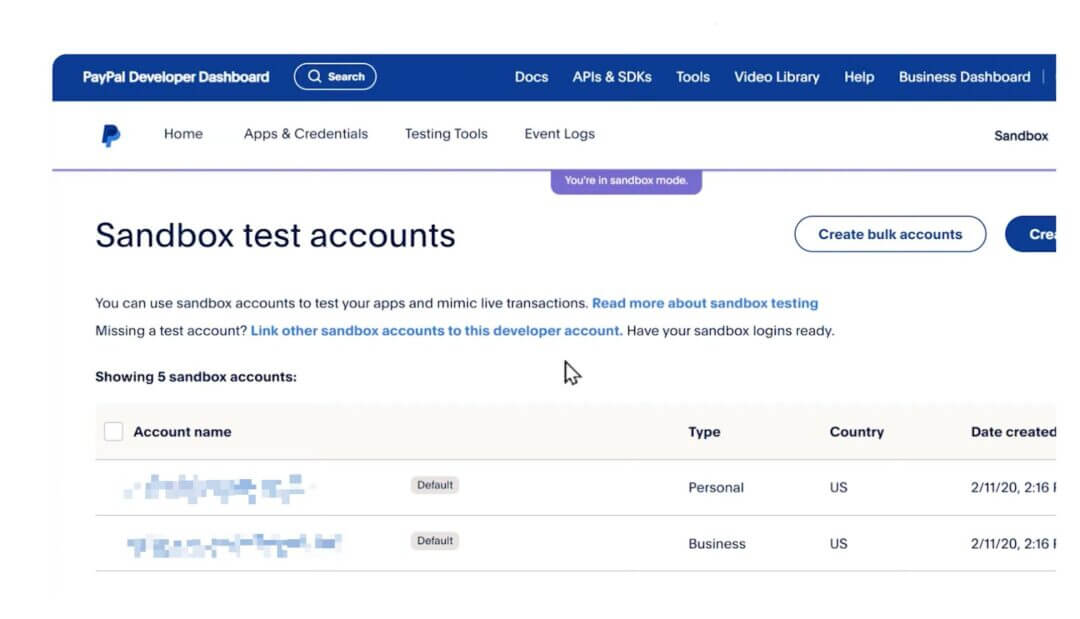
Go to developer.paypal.com and log in using your existing PayPal account. Once you’re logged in, go to the Testing Tools option in the menu at the top and select Sandbox Accounts.

On the next page, you will see a table with two accounts that PayPal automatically creates for you: a business account and a personal account.
Step 3: Create a Password for the Personal Test Account
First, create a password for the personal test account so that you can later log in to this account and make a test payment.
To do this, click on the three dots at the end of the row for the personal test account and select “View or Edit Account.”

On the next page, click on the “Change Password” option. A pop-up window will appear where you can type your new password for this test account.

Confirm the password by typing it again in the second text box, then click on “Save Changes.”
Step 4: Open Your WordPress Site and Install the PayPal Standard Add-On
Next, open a new tab and log in to your WordPress site. You will now install and activate the PayPal Standard add-on. From your WordPress dashboard, go to WPForms and open Add-ons.
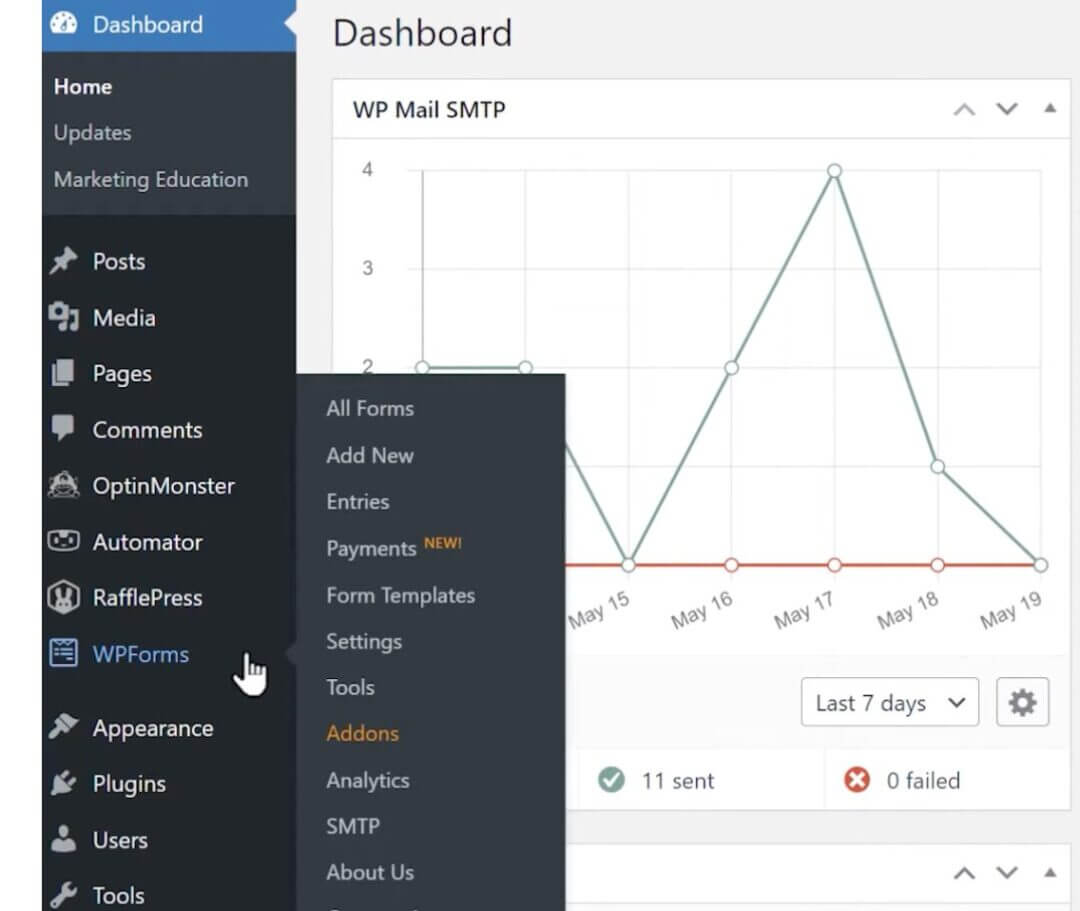
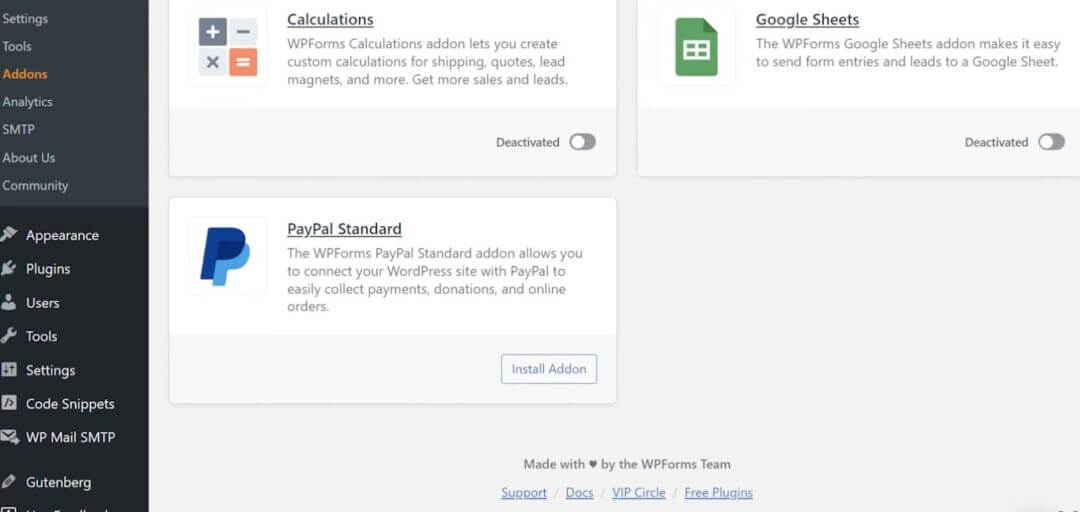
Find the PayPal Standard add-on, click on the Install button, and then click Activate.
Step 5: Enable PayPal on Your Payment Form
Once the add-on is activated, open the Form Builder in WPForms.

First, make sure that you have added at least one of the following payment fields to your form: Single Item, Checkbox Items, Multiple Items, or Dropdown Items.
You can also add a Total field to your form if you’d like.
Click on the Payments tab on the left side and then click on the PayPal Standard tab.

You will see a toggle that says “Enable PayPal Standard Payments.” Click on it.
When you do, additional settings will appear, which you’ll use to configure your connection to PayPal.
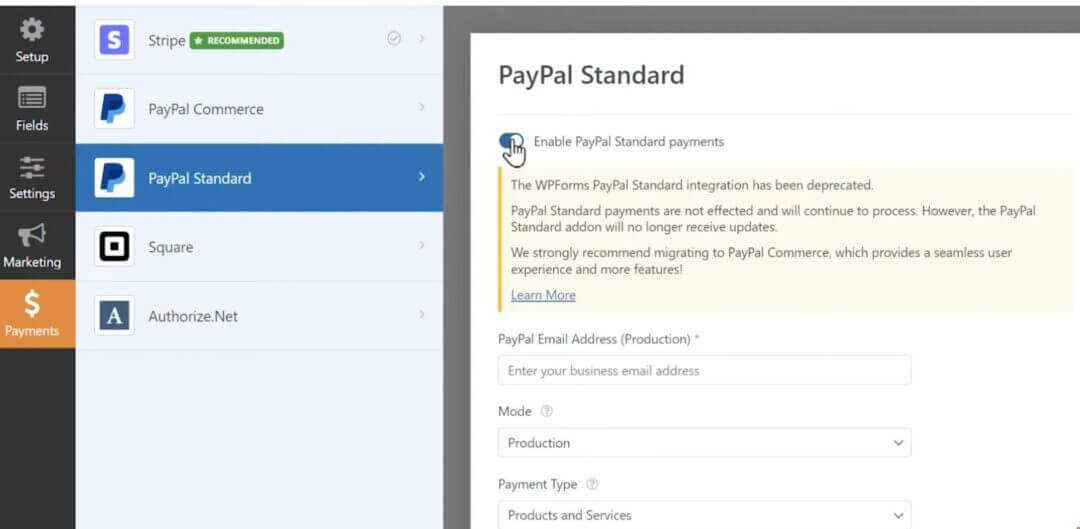
Step 6: Configure the PayPal Settings in WPForms
In the PayPal Email Address field, enter the email address of the business test account that was created for you on the PayPal Developer site.

If you don’t remember the email, go back to PayPal, copy the address from the business account, then return to WPForms and paste it into the PayPal Email Address field.
In the next field called Mode, you’ll see two options: Production and Test/Sandbox.

Production mode means that any payments submitted through this form will be live payments.
Since you are testing, select Test/Sandbox mode.
When you are done testing, you can come back here and switch it to Production mode and replace the test business email with your real PayPal account email address.
In the Payment Type dropdown, select either “Products and Services” or “Donations.”

The Cancel URL field is optional, but you can add a URL where users will be sent if they do not complete the checkout process on PayPal.
Finally, in the Shipping dropdown, select from the available options depending on what you are selling.
When you are done configuring the settings, click on the Save button at the top of the page and preview your form.

Step 7: Preview and Submit the Form
Click on the Preview button to view your form. Fill out your form fields, and in the Email field, enter the email address for the personal test account on PayPal.
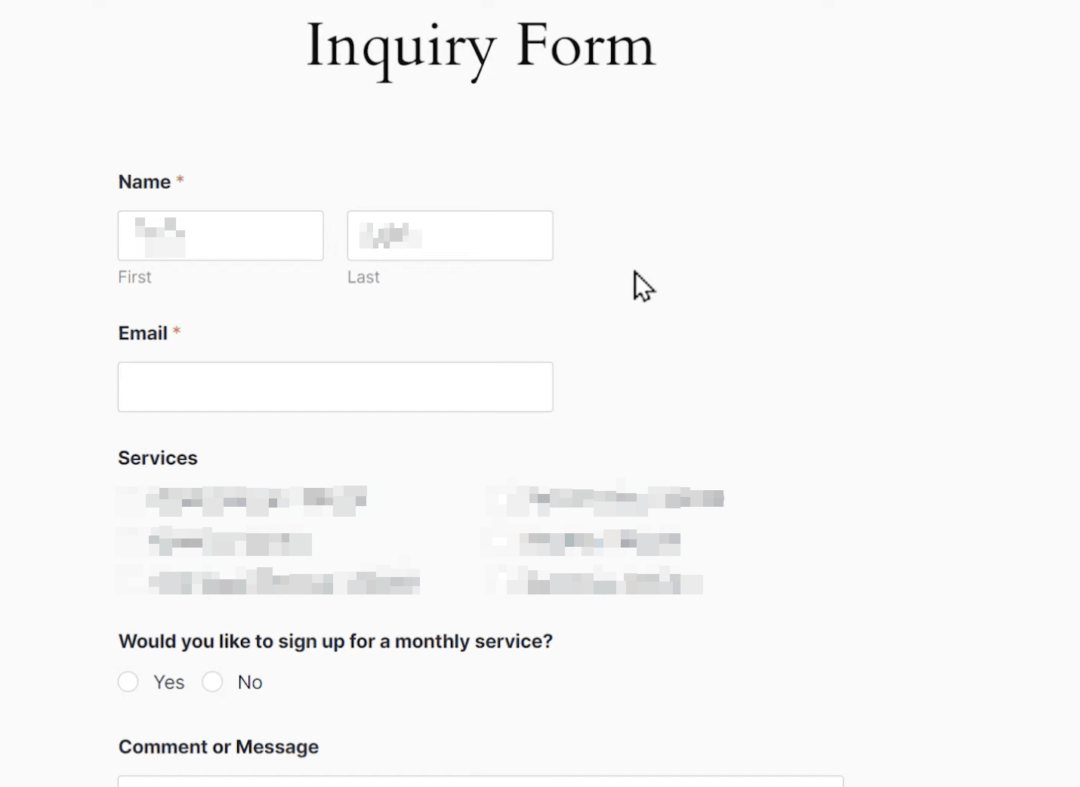
If you can’t remember it, go back to PayPal, copy the personal test account email, and paste it into the Email field of the form. Then submit the form as usual.
You will be redirected to the PayPal site and asked to log in.

Step 8: Log In and Complete the Test Payment
Use the email address for the personal test account and the password you created earlier. Click on the Login button.
After logging in, you will be taken to the order summary page where you’ll see the order details, a generic name, and possibly an address depending on your PayPal settings.
The Pay With option will automatically be set to Balance. Click on the Pay Now button to complete the test transaction. You should then see a page confirming your order.

Step 9: Verify the Test Payment in WPForms
If you want to see the test payment on your site, go to WPForms and open Payments.
Above the graph, there is a toggle called “Test Data.” Click on it to enable it, and you should see your test payment from PayPal.

Step 10: Switch to Live Mode
When you are done testing, go back into the PayPal Standard tab of the WPForms Form Builder. Switch the mode from Test/Sandbox to Production.

Then write in the email address associated with your real PayPal account in the PayPal Email Address field.
That’s all you need to do.
Congratulations! You now know how to test PayPal payments before going live.
| Connecting PayPal With Your Website Host PayPal, a major payment provider with over 400 million active users globally, offers seamless integration with many popular storefronts through PayPal Payments Standard, enabling customers to make purchases quickly. Let’s explore how to integrate PayPal with various e-commerce platforms. PayPal integrates smoothly with most storefronts. Follow the platform-specific flow below. WooCommerce (WordPress) ✔️ Log in to WordPress Admin. ✔️ Go to Plugins → search “WooCommerce PayPal Payments.” ✔️ Install and Activate. ✔️ Go to WooCommerce → Settings → Payments. ✔️ Click PayPal Checkout (or PayPal Payments). ✔️ Sign in with your PayPal account. ✔️ Tick Enable PayPal Gateway. ✔️ Save changes. In case you didn’t know: WordPress is a platform, it’s a content management system (CMS) that lets you build and manage your website. You can use it for blogs, portfolios, company sites, landing pages, and more. WooCommerce, on the other hand, is a plugin that you install on your WordPress site to turn it into an online store. It adds e-commerce features like product listings, shopping carts, checkout pages, and payment integrations (including PayPal). So, basically: WordPress = the website builder Wix ✔️ Log in to your Wix Dashboard. ✔️ Open Accept Payments. ✔️ Click Connect next to the PayPal icon. ✔️ Enter your PayPal email and connect. ✔️ For recurring payments:Click Enable Advanced Features → Grant Permission. Squarespace ✔️ If you’re on Personal, upgrade to Business or Commerce. ✔️ From Home Menu, go to Commerce → Payments. ✔️ Click Connect PayPal. ✔️ Sign in to PayPal. ✔️ Click Go Back to Squarespace to finish. BigCommerce ✔️ Log in to BigCommerce. ✔️ Go to Store Setup → Payments. ✔️ Open Online Payment Methods. ✔️ Find PayPal → Set Up → Connect with PayPal. ✔️ Log in and Grant Permission. ✔️ In PayPal Settings, click Save. Shopify ✔️ In Shopify Admin, open Settings → Payments. ✔️ Under Supported Payment Methods, find PayPal. ✔️ Click Manage → Activate. ✔️ Log in to PayPal. ✔️ Click Grant Permissions → Go Back to Shopify. Related Read: How to Add PayPal as a Payment Method in Shopify: Step-by-Step Guide If your platform isn’t listed here, check its help docs or contact support. PayPal is supported by most major providers, and the steps will mirror the flows above. |
PayPal Payments Setup Process for Non-US Founders
Now that you have a fair idea of the key steps involved in setting up PayPal payments as a US founder, let’s map what changes (and what doesn’t) for non-US founders.
While the overall flow remains the same for non-US founders, cross-border compliance, currencies, fees, and payout rails add a few extra checkboxes.
Quick example: a US founder can usually finish KYC and link a domestic bank in minutes, then start accepting USD the same day.
A non-US founder can do the same basics, but will also confirm foreign tax status (e.g., CFS or W-8 form flows) and make sure payouts and currencies are set correctly for their country, which can add extra steps and slightly different fees.
Comparison: PayPal Setup for US vs. Non-US Founders
US Founder
Non-US Founder
1. Account Type
Can directly open a PayPal Business Account using their SSN, US address, and EIN/LLC registration.
Must open a PayPal Business Account using their country of residence, and may need to submit foreign business verification documents if running a US-registered entity remotely.
2. Identity Verification (KYC)
Must upload US government-issued ID, proof of address, and EIN (if applicable). Usually auto-verified through databases.
Must upload a passport, national ID, or business license from their home country. Verification may take longer due to manual review and cross-border checks.
3. Business Information
Can list US address and phone number as primary business contact.
Must provide a local registered address and phone number, even if the business entity is a US LLC. PayPal may request proof of the US entity (Certificate of Formation, EIN letter).
4. Bank Account Linking
Instantly connects a US bank account (via instant login or micro-deposits).
Needs to connect a multi-currency account such as Wise, Mercury, or Payoneer that supports receiving USD. Local bank accounts often can’t receive USD directly.
5. Currency Handling
Default currency is USD; can easily add other currencies.
Default currency depends on the home country. To receive USD, must add USD as a secondary currency in PayPal settings.
6. Payment Setup
Can integrate PayPal Checkout, create PayPal buttons, or issue invoices using the same US Business Account.
Can also integrate PayPal Checkout, but must ensure currency conversion and cross-border payment settings are enabled. Fees are slightly higher for international transactions.
7. Fees and Exchange Rates
Standard domestic rates: 2.9% + $0.30 per transaction (for USD).
Cross-border fees apply: 4.4% + fixed fee based on currency, plus a small currency conversion fee (usually 2–3%)
8. Payouts
Can withdraw directly to any US bank account.
Must withdraw to a local bank or a USD-receiving account (like Wise). PayPal automatically converts USD to local currency if the bank doesn’t support USD.
9. Tax Information
Required to submit W-9 form (for US citizens or residents).
Required to submit W-8BEN form (for non-US persons) to confirm foreign tax status and avoid US withholding.
10. Support and Dispute Resolution
Access to full PayPal Business support, phone assistance, and PayPal Working Capital (if eligible).
Support depends on the country. Some features like PayPal Credit or Working Capital loans are not available to non-US accounts.
Preparing to Open a PayPal Business Account as a Non-US Founders
Before you start the process of opening a PayPal business account, it’s crucial to understand the necessary steps and requirements.
Here’s what you need to do without fail.
Step 1: Form a US Entity
The first and foremost step is to form a legal business entity in the US. You can establish your company in any state.
Non-residents often prefer to register an LLC (Limited Liability Company) in business-friendly states such as Wyoming or Delaware. This is how you can do this:
- Select a state (Wyoming and Delaware are well-liked for low fees and privacy advantages)
- Hire a registered agent (a service that can legally represent your company in that state)
- Complete your Articles of Organization
- Pay the state filing fee (typically between $50 to $150)
Once your LLC is officially registered, you’ll receive official documents like the Certificate of Formation, which is crucial for verifying your business.
Pro Tip: doola assists with USA company registration for foreigners, providing packages that provide everything you require, including registered agent services and business mail forwarding.
Step 2: Obtain Tax ID Numbers
Next, you need to obtain Tax ID numbers, namely the Employer Identification Number (EIN) and Individual Taxpayer Identification Number (ITIN).
Start by obtaining an EIN for your company, followed by applying for an ITIN. The total process can take up to 16 weeks.
You can request an EIN from the IRS (Internal Revenue Service) website or let doola obtain it for you.
Obtaining an EIN as a non-resident is easy, but make sure your LLC documents are up to date to avoid any holdup.
Step 3: Create Your PayPal Business Account With Your LLC Details
PayPal will ask for your business name, address, and type of business entity.
If you are a non-US founder with a US LLC, you can:
- Use your registered agent’s address (the same one listed on your Certificate of Formation).
- Enter your LLC’s legal name as it appears on your incorporation documents.
- Provide your EIN (Employer Identification Number), which you can obtain from the IRS (even as a non-resident).
If you don’t have a US entity but are opening a PayPal account in your home country, use your local business address and registration number. The interface will automatically adjust based on your country selection.
Provide Business and Owner Identification Details
This is where the main difference lies.
- US Founders: Typically submit their SSN for tax verification.
- Non-US Founders: Must submit their passport or national ID and sometimes a proof of business ownership (like Articles of Organization or Certificate of Formation).
If you’re using a US LLC, PayPal will ask for your EIN letter from the IRS and may prompt for W-8BEN or W-8BEN-E to confirm foreign ownership and tax residency.
This ensures PayPal classifies your business under the correct FATCA status (foreign-owned US entity).
| Essential Requirements for Opening a US PayPal Account
When opening a US PayPal account, whether personal or business, make sure you have the following information and documents ready. Personal PayPal Account Requirements: ✔️ Name ✔️ Address ✔️ Phone Number ✔️ E-mail address ✔️ Social Security Number (SSN) Business PayPal Account Requirements: ✔️ A Company Phone Number ✔️ A Company Address ✔️ An EIN Number ✔️ Social Security Number (SSN) or ITIN Documentation Required for Opening a PayPal Account PayPal requires specific documents to set up an account. These include: Acceptable Proof of SSN/ITIN documents: ✔️ Social Security Number card ✔️ Letter from IRS assigning SSN or ITIN1099 Form (Dated within last 12 months) ✔️ Employer-issued W2 (Dated within last 12 months) ✔️ Paystub with complete SSN (Dated within last 12 months) ✔️ 3rd party prepared tax documents (Dated within the last 12 months, and signed by 3rd party preparer) Acceptable Proof of Identity documents: ✔️ Passport or passport card ✔️ State or Government Issue ID Acceptable Proof of Address documents: ✔️ Cell or landline phone bill (Dated within last 12 months) ✔️ Motor vehicle registration (Dated within last 12 months) ✔️ 401k/Brokerage Statement (Dated within last 12 months) ✔️ Copy of Grant Deed on Home or Lease Agreement for Home ✔️ Bank or credit card statement (Dated within last 12 months) ✔️ Identity card or driver’s license with physical address listed (must be current) Note: PayPal’s system will recognize that you’re setting up a cross-border account, so verification might take longer or require additional documents. |
Step 4: Open a U.S. Bank Account
Next, you’ll need a U.S. bank account for your business to connect with PayPal.
For non-U.S. founders, the two most accessible digital banks are:
Both allow remote account opening and accept non-U.S. founders with valid LLCs.
| Here are some alternatives for non- U.S. residents:
✔️ Traditional American Banks Some banks offer remote account opening if you provide company documents, a copy of your passport, and an address. ✔️ Online Banking/Financial Companies Mercury, Payoneer, and Wise offer American bank accounts to non-resident individuals with fewer complications. These online banking platforms are generally simpler and quicker to open than traditional banks, especially if you do not have a US address. |
If you have picked Mercury as your preferred bank, then follow these steps:
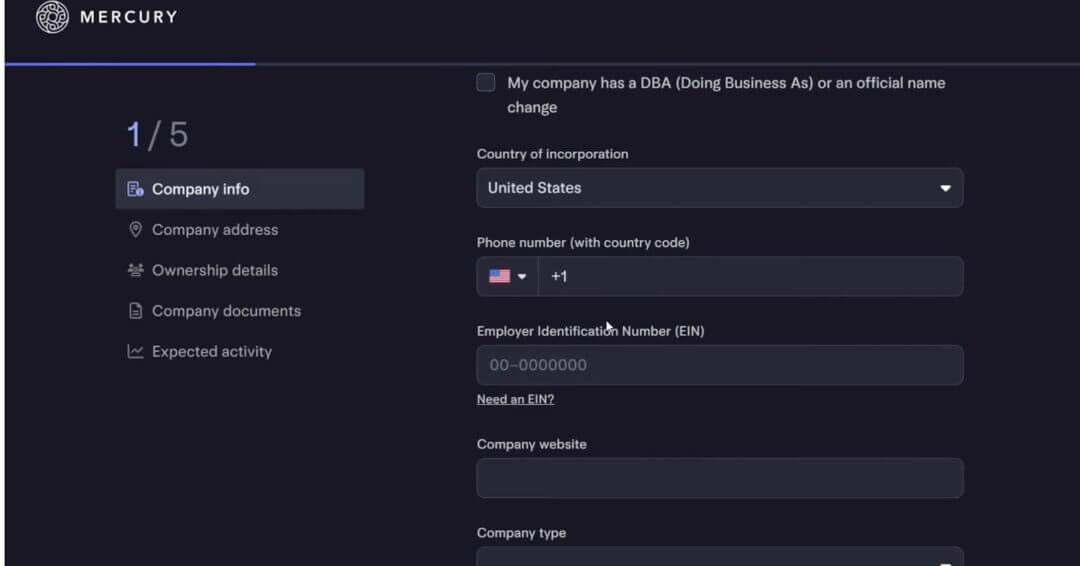
- Visit the official website and click “Open Account.”
- Enter your LLC details including EIN, company address, and company registration documents so you can receive routing and account numbers for later use with PayPal.

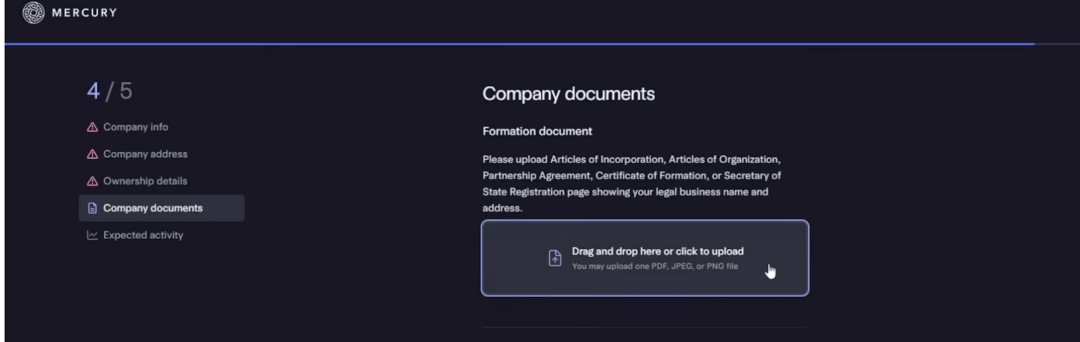
- Wait for approval, which is typically 3–5 business days.
Once approved, Mercury will provide the following:
- A checking and savings account (with routing and account numbers)
- A virtual debit card
You’ll need these account details later when linking PayPal.
Step 5: Set Up a U.S. VPN Connection
PayPal identifies your country based on your IP address.
If you are outside the U.S. and attempt to log in from a non-U.S. IP, this can lead to verification problems or account rejection during the setup process.
To prevent these issues, it is essential to use a reliable paid VPN (avoid free VPNs).
- Recommended VPNs: NordVPN or ExpressVPN
- Connection: Always connect to a U.S. server before accessing PayPal.
After connecting to the VPN, confirm that PayPal loads directly without redirecting you to a country-specific site (for example, paypal.nl, paypal.in, or paypal.ph).
Next, visit PayPal and click Sign Up, while your VPN is connected to the U.S.

When prompted, choose Business Account instead of Personal.

For non-US founders managing a US-registered business (like a Wyoming or Delaware LLC), this is the account type you’ll need to receive and send payments globally in USD.
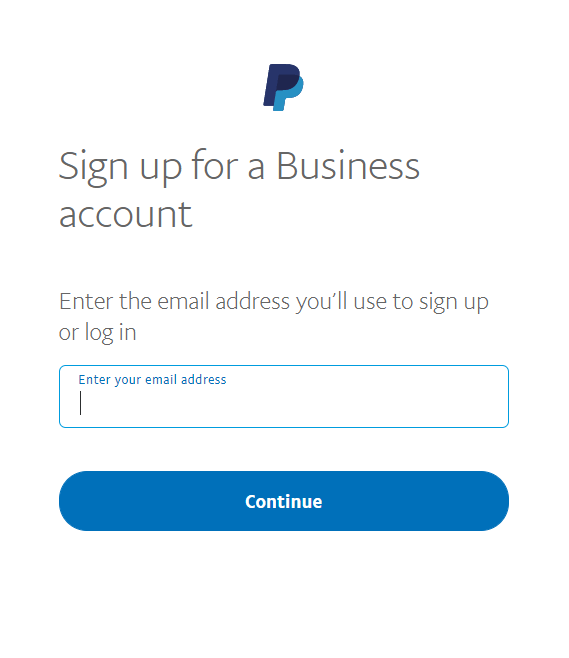
Step 6: Enter Your Email Address
Next, you’ll be asked to add the email address you want to use to set up your PayPal business account. Enter the email you want to use, and then click Continue.
Step 7. Verify Your email
On the Summary page, click Confirm your email. PayPal will send a message to the email address you used to sign up. Check your inbox (and spam).
If you don’t see it, return to PayPal.com and click Send Email. Look for the subject line “Activate your new account.” Open that email and click “Confirm my email address.”

Step 7: Enter Business Details
Next, PayPal will ask about your business type and activity:
- Choose Digital products, Services, or whatever best matches your business.

- Select where you sell (e.g., “Social media” or “Online checkout”).

- Choose Payment Link and Online Checkout as payment methods.

- Select One-time payment as your purchase type (unless you offer subscriptions).
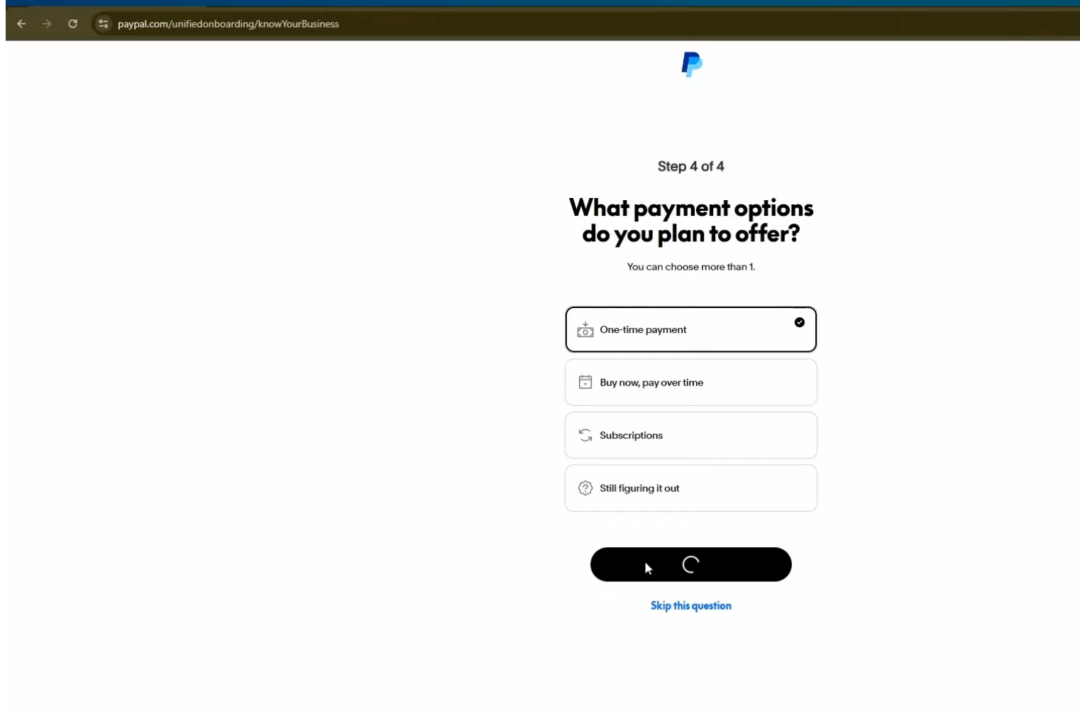
When asked for Business Type, you can either choose Individual / Single-Member LLC or Sole Proprietorship, and click on Next.

Paypal also needs some basic information about yourself. For your Home Address, use your LLC’s registered business address, not your foreign and residential address. This ensures consistency.

Plus, when prompted for SSN, enter your EIN number instead, this acts as the business tax ID.

Step 8: Add a U.S. Phone Number for Verification
PayPal requires a U.S. phone number for two-step verification. They are very strict about that.

Since most foreign virtual numbers are blocked, you can:
- Use a dedicated virtual number provider that supports PayPal verification (like SMSReceiveFree, Receive-SMS.com, or PingMe).
- Rent a private number and complete verification when PayPal sends a code.
Avoid free shared numbers; PayPal rarely accepts them.
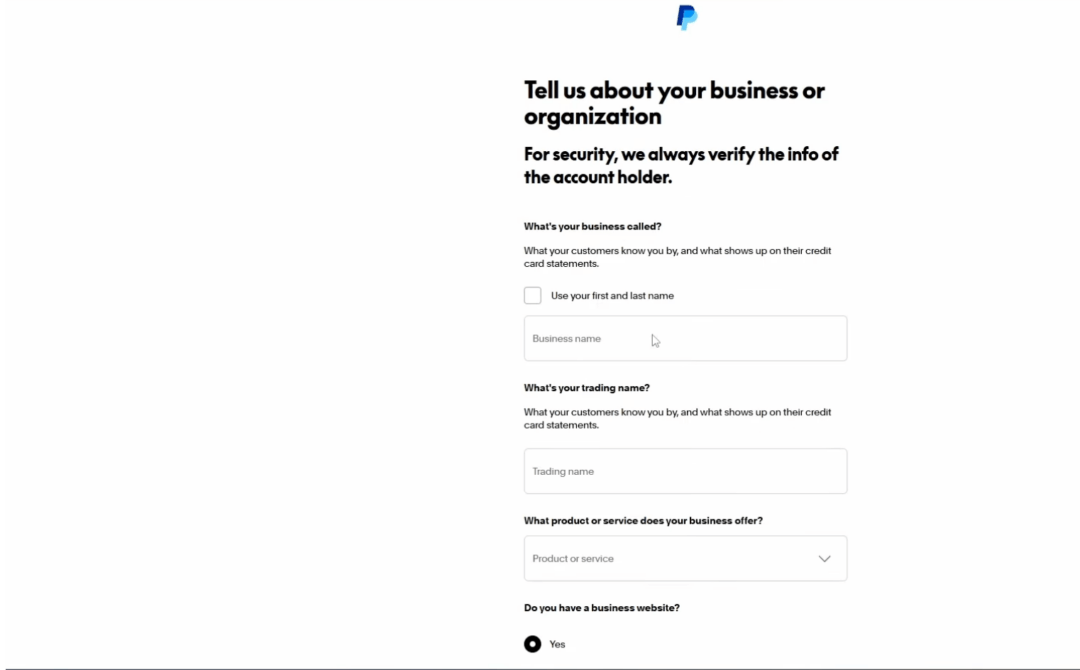
Step 9: Fill In Your Business Information
Use the exact LLC legal name from your formation documents as the business name.
Set the trading name the same as the LLC name, or choose a different display name if you prefer. For business contact info, tick the box to use the same address as your LLC.
After completing these fields, click Next.
Step 10: Verify Your Identity
Next, PayPal will ask you to verify your identity. When prompted, upload an image of your international passport (most widely accepted for non-U.S. founders).
Make sure it’s clear, in color, and fully uncropped.
And there you go! You’re done.
Step 11: Link Your Bank Account
To receive payments seamlessly from your customers, PayPal requires a linked bank account. In the PayPal Finance section, go to your Banks & Cards section and choose Link a Bank.
If you pick Mercury, log in using the secure credentials of your Mercury account.
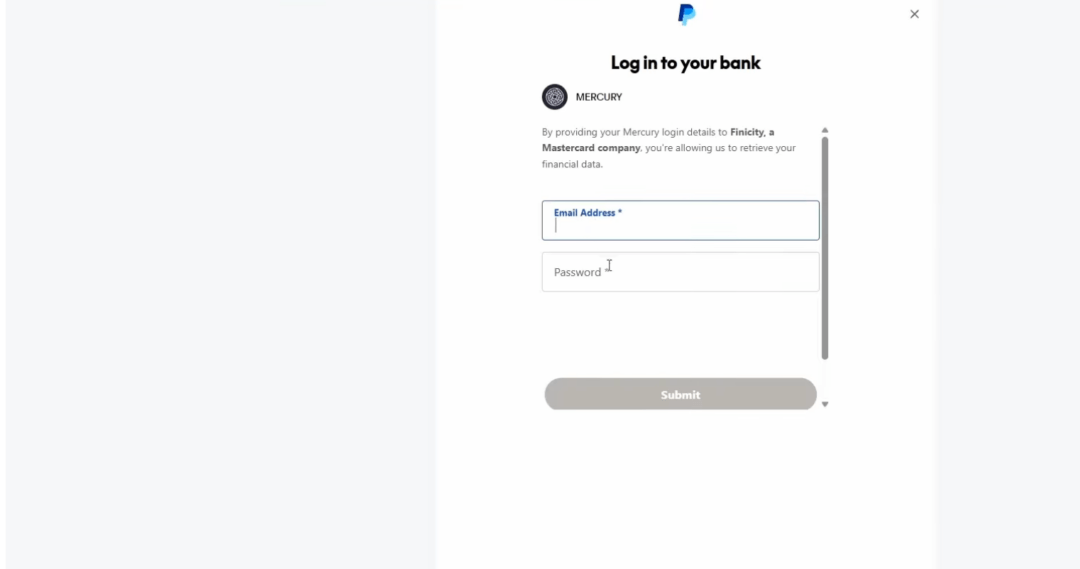
You can also add your bank manually.


All you need to do is enter your routing and account number and then “authorize and link”.
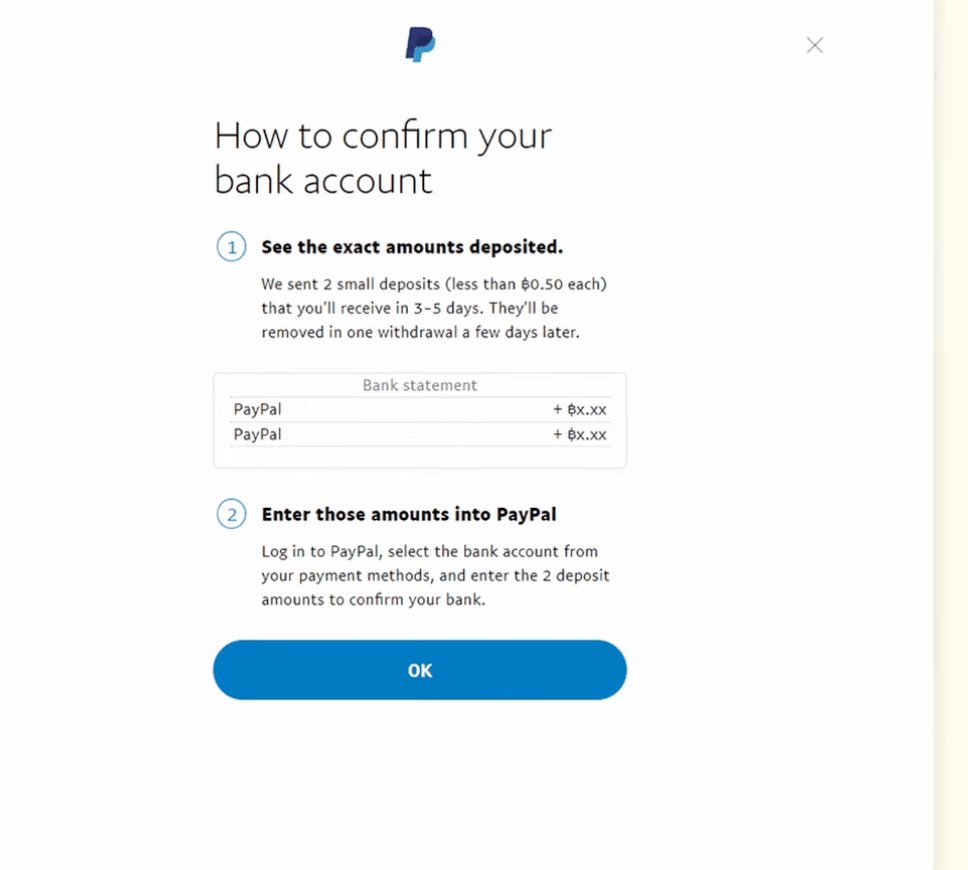
Next, PayPal will send two small deposits (less than $1 each) to your bank account.
Once you see them, return to PayPal and enter the exact deposit amounts to verify the link.
Step 12: Test Your Account
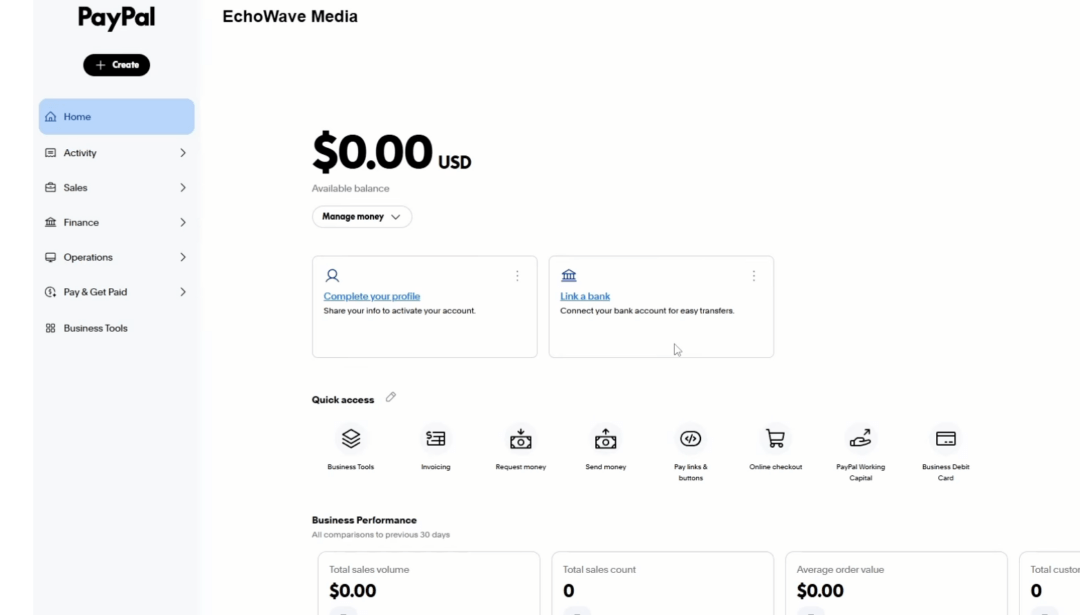
After verification, your PayPal dashboard will show your balance and linked bank. Try sending or receiving a small test transaction (e.g., $25) to ensure everything works smoothly.
Step 13: “Warm Up” Your Account
New PayPal Business accounts can get flagged for sudden large transfers.
To keep your account in good standing:
- Start with small transactions ($25, $50, $100). Never big like $1000.
- Gradually increase over time.
- Keep your VPN always on when logging in to maintain consistent U.S. access.
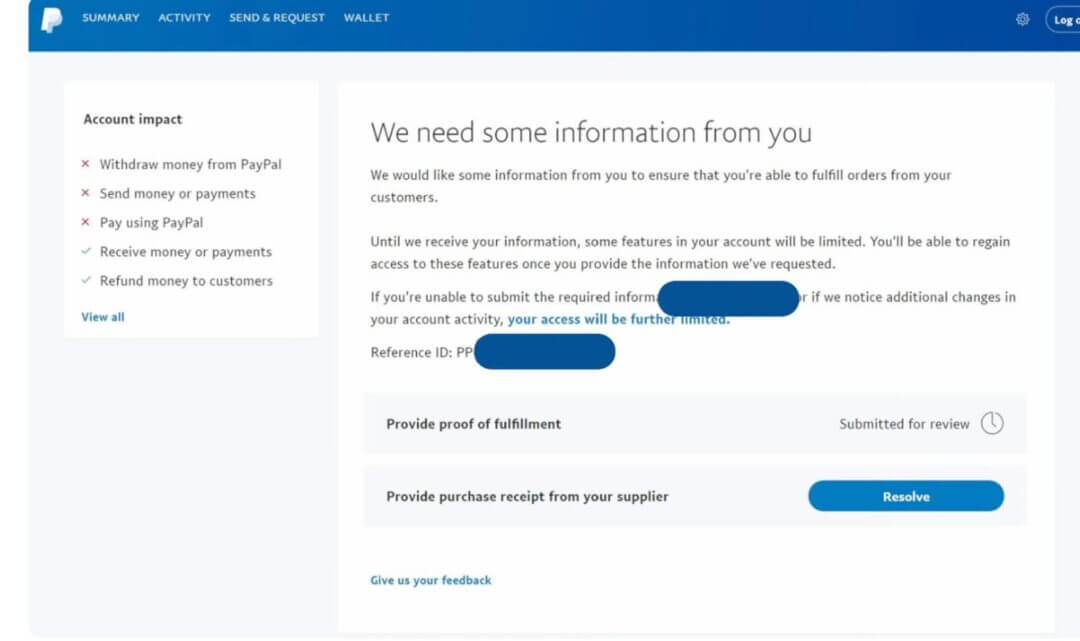
- Respond promptly if PayPal requests additional business verification details, upload your LLC or EIN documents again. Don’t panic when this happens. It’s totally normal for new business accounts.

Step 14: Review and Submit
Double-check all your details, especially your business name, EIN, and bank information, and then submit your application.
PayPal may take 24–72 hours to verify your documents.
Once verified, your Business Dashboard will show active status, and you can start integrating PayPal Checkout, buttons, or invoicing tools just like a US founder would.
Things to Keep in Mind if You Are a Non-U.S. Founder
Let’s walk through some nuances so you know exactly what to expect as a non-US founder.
Understanding Currency and Conversion
When you link your bank account to PayPal, how your money is handled depends on what type of account you connect to, and whether it supports USD or only your local currency.
1. If Your Bank Account Supports Multiple Currencies
Accounts from providers like Wise, Payoneer, or Mercury can hold balances in USD, EUR, and other major currencies. If you link one of these, PayPal will transfer your funds in USD directly, no conversion needed.
This means:
- You’ll receive and withdraw money in USD exactly as paid by your customers.
- You avoid currency conversion fees and can choose when (and where) to convert USD into your local currency, usually at a better rate offered by your provider (e.g., Wise).
- Your transfer will typically complete faster because no currency conversion or intermediary bank is involved.
Best option if you sell globally and want to keep earnings in USD.
2. If Your Bank Account Only Supports Your Local Currency
If your linked account can only hold your home currency (for example, INR in India or EUR in France), PayPal automatically converts all incoming USD payments before sending them to your bank.
Here’s what happens:
- PayPal converts the amount from USD to your local currency during withdrawal.
- You’ll see the converted amount in your PayPal dashboard before confirming the transfer.
- A currency conversion fee will apply, typically 2% to 3% above the mid-market exchange rate.
For instance: If your PayPal balance is $1,000 USD and your local currency is INR, PayPal will convert it at its internal rate (which is slightly lower than Google or Wise’s mid-market rate) and deposit the converted INR amount into your bank.
This is automatic and cannot be turned off unless you link a USD-receiving account.
| How to Reduce Currency Conversion Loss To minimize conversion fees and preserve earnings, many non-US founders choose to: ✔️ Link a multi-currency account like Wise or Payoneer that supports USD. ✔️ Withdraw funds in USD and later convert manually when the exchange rate is favorable. ✔️ Keep a USD balance inside PayPal and only transfer when needed. For founders managing US LLCs from abroad, using a US-based fintech account such as Mercury or Relay Financial is often the most cost-efficient route, both allow you to hold and withdraw USD directly, with no conversion loss or currency limitations. |
Handling Tax & Name Compliance
PayPal’s internal review ensures that:
- The name on the bank account matches your verified business or individual name.
- The EIN (for US entities) or local TIN (for foreign entities) matches your KYC records.
If there’s a mismatch, your payout may fail or stay on hold until corrected. Always link the bank account under the same legal entity name that appears on your PayPal Business Account.
Now that your PayPal Business account is verified and bank-linked, let’s plug it into your store, the fastest path to ‘money in, money out’ for global founders who are non-U.S. residents and who can’t afford checkout chaos.
Step 15: Connect PayPal To Your Store Or Platform
Let’s spell it out step by step.
3 Ways To Add PayPal To Your Website
- PayPal Buttons: Best when you sell just a handful of items.
- PayPal Payments Standard: A full checkout that plugs into most major e-commerce platforms.
- PayPal API Integration: Ideal for larger operations with volume and a custom checkout experience.
Let’s go deeper.
1. Add A Payment Button To Your Website
If you only offer a few products, the fastest path is a simple PayPal checkout button. This approach avoids building a shopping cart from scratch. You just need a PayPal account and a Buy Now or Subscribe button.
With hosted checkout, clicking the button sends the buyer to paypal.com to enter details and complete payment. Afterward, you receive a confirmation email and your customer gets a receipt.
PayPal provides different button types for different use cases:
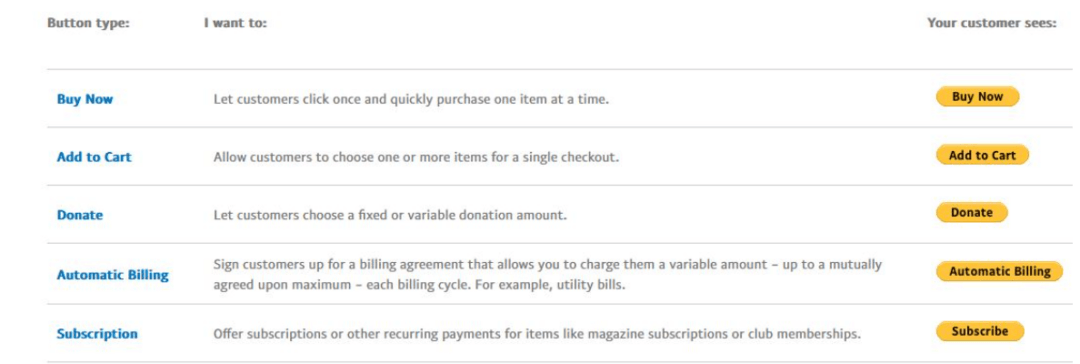
- Buy Now: One product, immediate checkout. Great for single-product pages or small catalogs.
- Add to Cart: Let shoppers collect multiple items first. Best for stores with several SKUs.
- Donate: Accept fixed or open-amount contributions. Perfect for nonprofits, charities, creators.
- Automatic Billing: Charge variable amounts at set intervals within a preset cap and timeframe agreed by both parties. Useful for metered or usage-based services.
- Subscription: Fixed recurring payments (weekly, monthly, annually, etc.). Ideal for SaaS, memberships, subscription boxes, magazines.
How To Add A PayPal Button (Quick Steps)
Here are the steps involved in adding a PayPal payment button:
- Create/Upgrade to a PayPal Business account.
- Log in and open the App Center.
- Choose PayPal Checkout to create/manage buttons.
- Click Choose a Way to Integrate.
- Start the setup for individual items.
- Customize the button (item name, price, taxes/fees, design to match your site).
- Copy the generated HTML and paste it into your page where you want the button.
There are no setup fees, and you can start taking payments in minutes.
Heads-up:
- You’ll need a separate button per product/service, one button can’t be reused for different listings.
- For digital goods, dispute resolution can tilt toward buyers; factor that into your risk handling and refund policy.
2. Add PayPal Payments Standard (Fast + No-Code)
PayPal Payments Standard works with most popular platforms, WooCommerce, Shopify, Wix, and more. PayPal runs the full checkout and payment flow for you.
Setup is straightforward, no developer required. If you have a Business account, you can be live in minutes.
How To Setup PayPal Payments Standard
Here are the steps involved in setting up PayPal Payments Standard:
- Confirm compatibility. Make sure your cart/platform supports PayPal.
- Open your admin panel (your store dashboard).
- Select PayPal Payments Standard in Payment Settings.
- Link your account by signing in with your PayPal Business credentials.
The exact clicks vary by platform, but that pattern is the norm.
Up next, you’ll find platform-specific quick-starts (WordPress, Wix, Squarespace, etc.).
3. Set Up A Custom API Integration With Your Website
Choose the API route if your tech stack is interconnected and you have a developer.
With PayPal’s JavaScript SDK (and legacy NVP/SOAP if needed), you can programmatically create and manage PayPal Payments Standard buttons, auto-fulfill orders, and store transactions in your own database, thereby giving you full control over the checkout experience.
What You Gain
- Instant payments: Drop code in and start collecting immediately.
- Operational control: Auto-fulfill orders, write to your DB, customize post-payment flows.
- Richer analytics: Capture granular user and transaction data to improve UX and conversion.
Note: This approach is built for developers or platforms that provide shopping carts to merchants.
How To Set Up PayPal API Integration
This part looks technical, but it’s just a handful of clicks:
Step 1: Log In and Get Your API Credentials
Sign in to your PayPal Business account. Once you’re in, click the Settings gear icon at the top right of the page.
From there, open Account Settings, then Account Access. Under API Access, select Update, and choose Manage API Credentials.
Here, you’ll see two connection methods:
- NVP/SOAP API, which is the older format still used for server-to-server communication.
- REST API, the newer standard that uses a Client ID and Secret Key.
Click Show or Generate API Signature to view your credentials.
Finally, copy and safely store your API Username, Password, and Signature (for NVP/SOAP), or your Client ID and Secret (for REST API).
Step 2: Choose How To Host Your PayPal Buttons
You have two options here:
- Host on PayPal: PayPal keeps the button data secure on their servers.
- Host on Your Own Server: You encrypt and manage your button code manually.
Developers usually prefer self-hosting because it allows styling flexibility and integration with backend logic.
Step 3: Create The Buttons
You can create custom buttons directly inside your PayPal account.
- Go to Pay & Get Paid, then Accept Payments, then PayPal Buttons.
- Click Create a Button and choose the type you need: Buy Now, Add to Cart, Donate, Subscribe, or Automatic Billing.
- Enter the item name, price, currency, and any other required details.
- Customize the look by selecting the color, size, and label text.
- Save the button and copy the HTML or JavaScript snippet that PayPal generates.
If you’re integrating via the API, your developer can generate buttons dynamically using PayPal’s JavaScript SDK, instead of creating each one manually.
Step 4: Add The Button Code To Your Website
- Paste the button code into your website’s checkout or product page HTML.
- If you’re using the JavaScript SDK, add this script tag inside your HTML’s <head> section: <script src=”https://www.paypal.com/sdk/js?client-id=YOUR_CLIENT_ID“></script>
3. Replace YOUR_CLIENT_ID with your actual PayPal API credentials.
4. Add the PayPal button container: <div id=”paypal-button-container”></div>
5. Use PayPal’s sample code (from their developer docs) to handle approvals and capture payments.
| Quick checks before you test
✔️ Make sure the script tag with your Client ID is included once per page. ✔️ Confirm the container ID in .render(‘#paypal-button-container’) exactly matches your <div id=”paypal-button-container”>. ✔️ If nothing shows up, open the browser console to see any error messages (often it’s a typo in the Client ID or container ID). |
Step 5: Automate Orders And Database Updates (Optional)
You can configure your backend to automatically fulfill orders once payment succeeds:
- Use PayPal Webhooks to receive payment confirmation events.
- Connect your order system or database to mark items as paid, generate invoices, or trigger email confirmations.
This is where the integration becomes truly powerful; automating workflows instead of doing them manually.
Step 6: Test In The PayPal Sandbox
The PayPal Sandbox is a secure testing environment that lets you try out your app or e-commerce setup without using real money or live accounts.
It functions just like the regular PayPal site, but everything happens in a safe, simulated space.
Let’s walk through how it works in detail.
How to Test PayPal Standard Payments on Your Website
In this section, we’ll show you how to trial PayPal Standard payments so you catch errors and integration hiccups before real customers pay.
We’ll demo on WordPress (a common founder setup), but the steps are nearly the same on other platforms, just small differences in the menus.
Step 1: Set Up Your PayPal Account
Before doing anything else, make sure you already have a PayPal account set up. If you don’t, go to the official website and create one.
Step 2: Log In to the PayPal Developer Site
Go to developer.paypal.com and log in using your existing PayPal account. Once you’re logged in, go to the Testing Tools option in the menu at the top and select Sandbox Accounts.
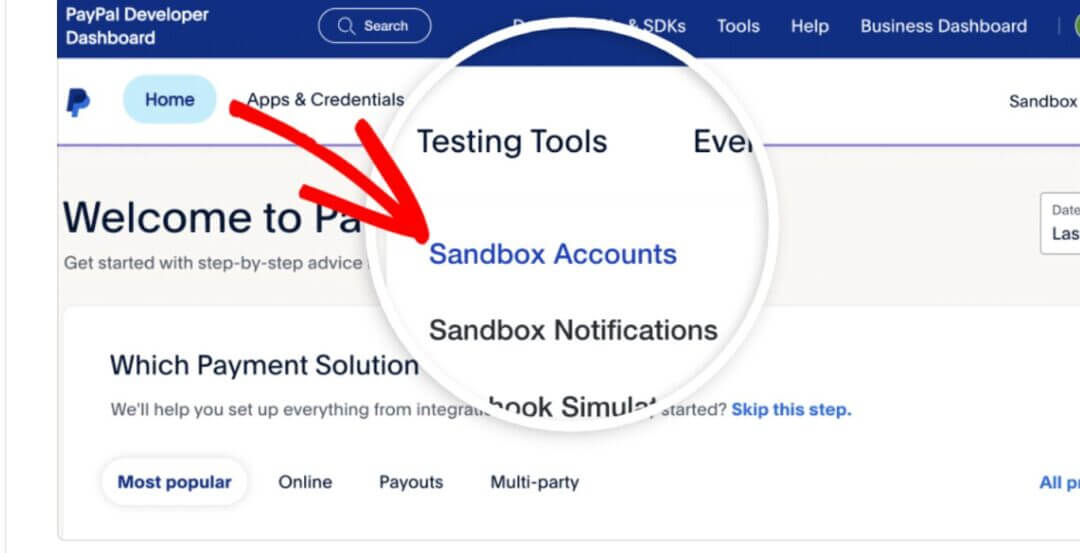

Step 3: Create a Password for the Personal Test Account
First, add a password to your personal test account so you can log in later and make a sample payment. Just click the three dots beside the personal account and select “View or Edit Account.”
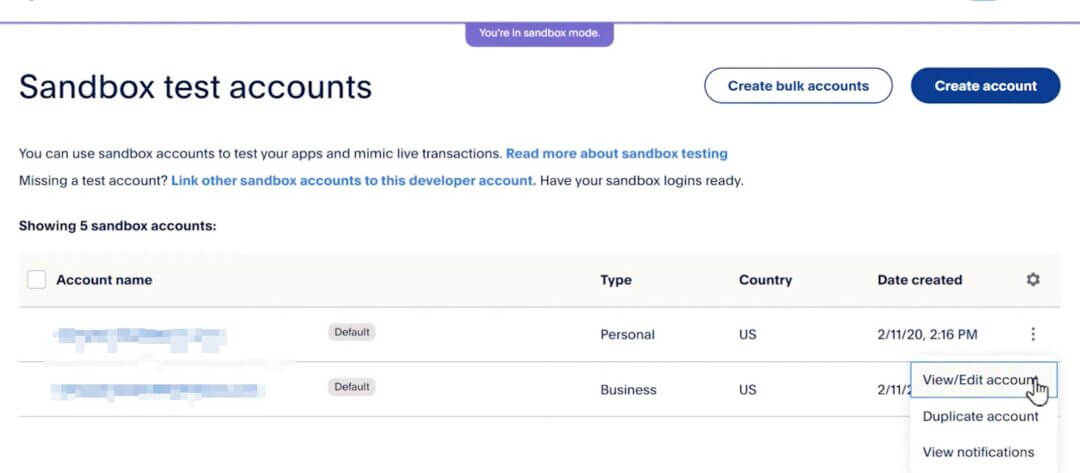
On the next page, click on the “Change Password” option. A pop-up window will appear where you can type your new password for this test account.

Confirm the password by typing it again in the second text box, then click on “Save Changes.”
Step 4: Open Your WordPress Site and Install the PayPal Standard Add-On
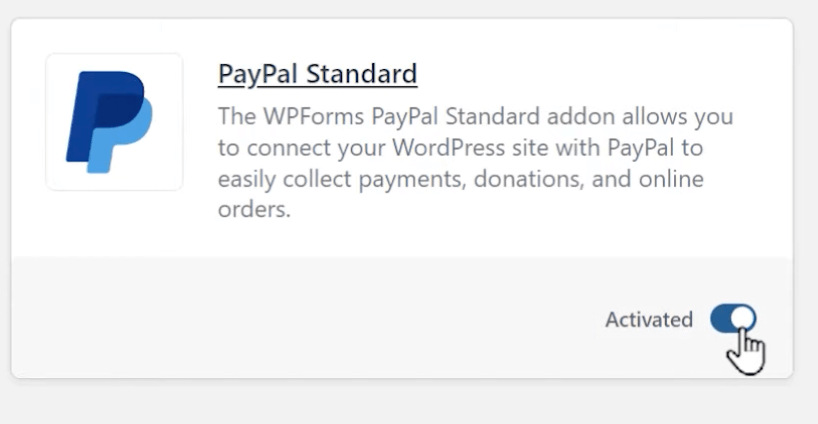
Next, open a new tab and log in to your WordPress site. You will now install and activate the PayPal Standard add-on. From your WordPress dashboard, go to WPForms and open Add-ons.


Find the PayPal Standard add-on, click on the Install button, and then click Activate.
Step 5: Enable PayPal on Your Payment Form
Once the add-on is activated, open the Form Builder in WPForms.

First, make sure that you have added at least one of the following payment fields to your form: Single Item, Checkbox Items, Multiple Items, or Dropdown Items.
You can also add a Total field to your form if you’d like.
Click on the Payments tab on the left side and then click on the PayPal Standard tab.
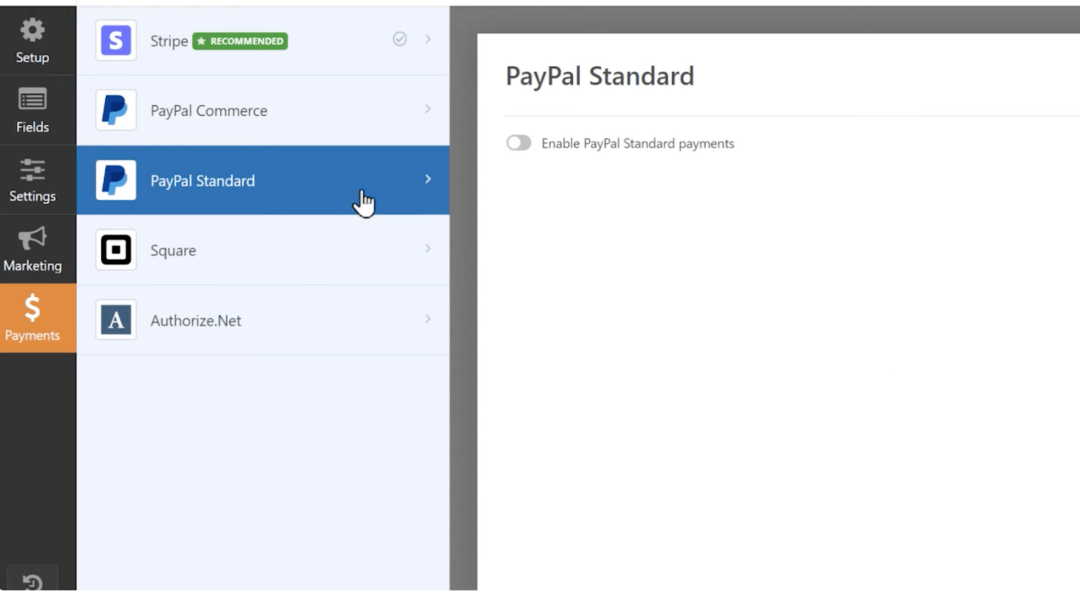
You will see a toggle that says “Enable PayPal Standard Payments.” Click on it.
When you do, additional settings will appear, which you’ll use to configure your connection to PayPal.
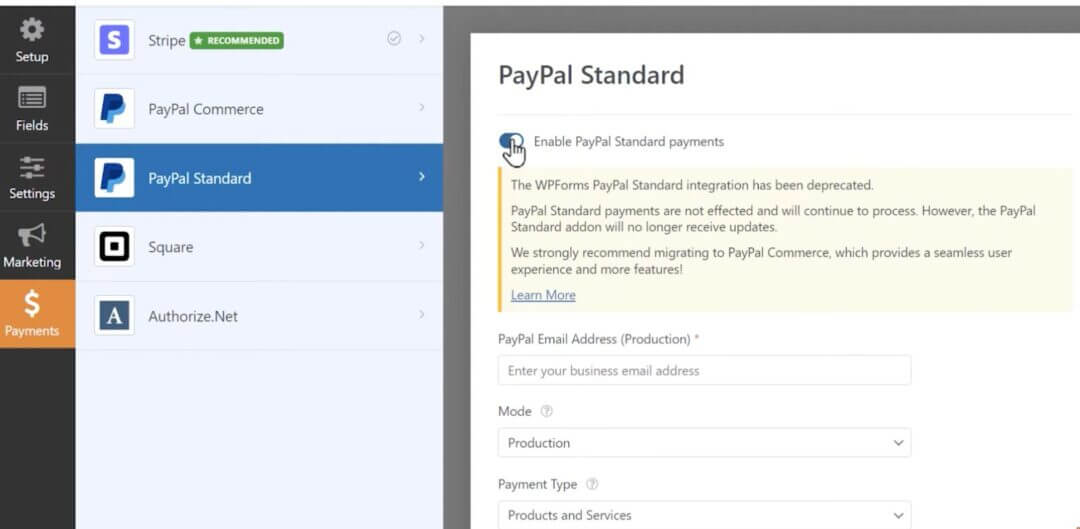
Step 6: Configure the PayPal Settings in WPForms
In the PayPal Email Address field, enter the email address of the business test account that was created for you on the PayPal Developer site.
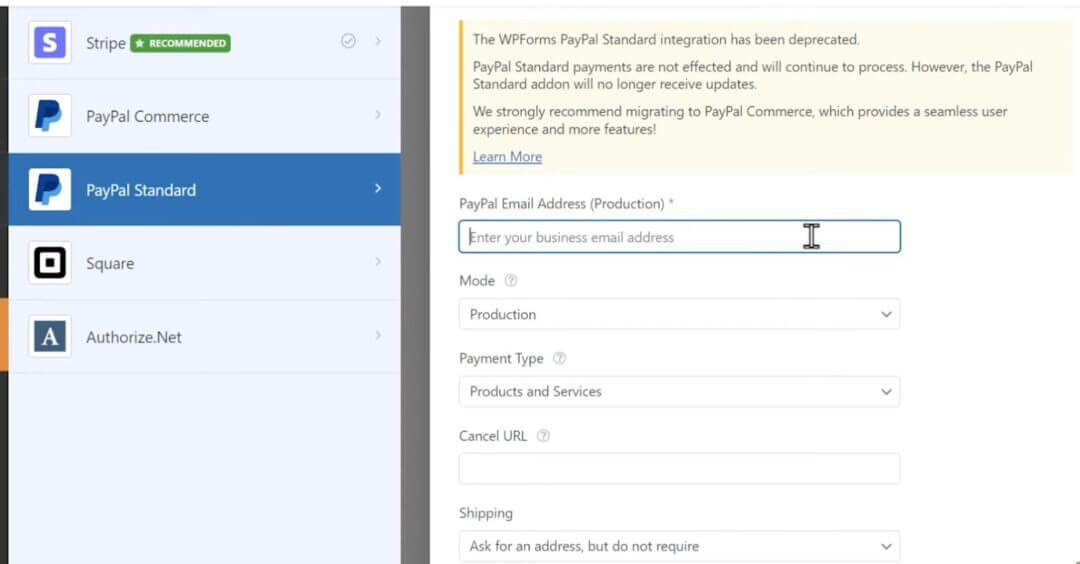
If you don’t remember the email, go back to PayPal, copy the address from the business account, then return to WPForms and paste it into the PayPal Email Address field.
In the next field called Mode, you’ll see two options: Production and Test/Sandbox.
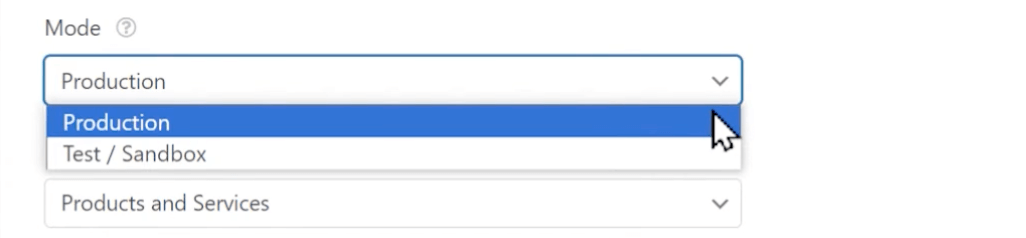
Production mode means that any payments submitted through this form will be live payments.
Since you are testing, select Test/Sandbox mode. When you are done testing, you can come back here and switch it to Production mode and replace the test business email with your real PayPal account email address.
In the Payment Type dropdown, select either “Products and Services” or “Donations.”

The Cancel URL field is optional, but you can add a URL where users will be sent if they do not complete the checkout process on PayPal. Finally, in the Shipping dropdown, select from the available options depending on what you are selling.
When you are done configuring the settings, click on the Save button at the top of the page and preview your form.

Step 7: Preview and Submit the Form
Click on the Preview button to view your form. Fill out your form fields, and in the Email field, enter the email address for the personal test account on PayPal.

If you can’t remember it, go back to PayPal, copy the personal test account email, and paste it into the Email field of the form. Then submit the form as usual.
You will be redirected to the PayPal site and asked to log in.
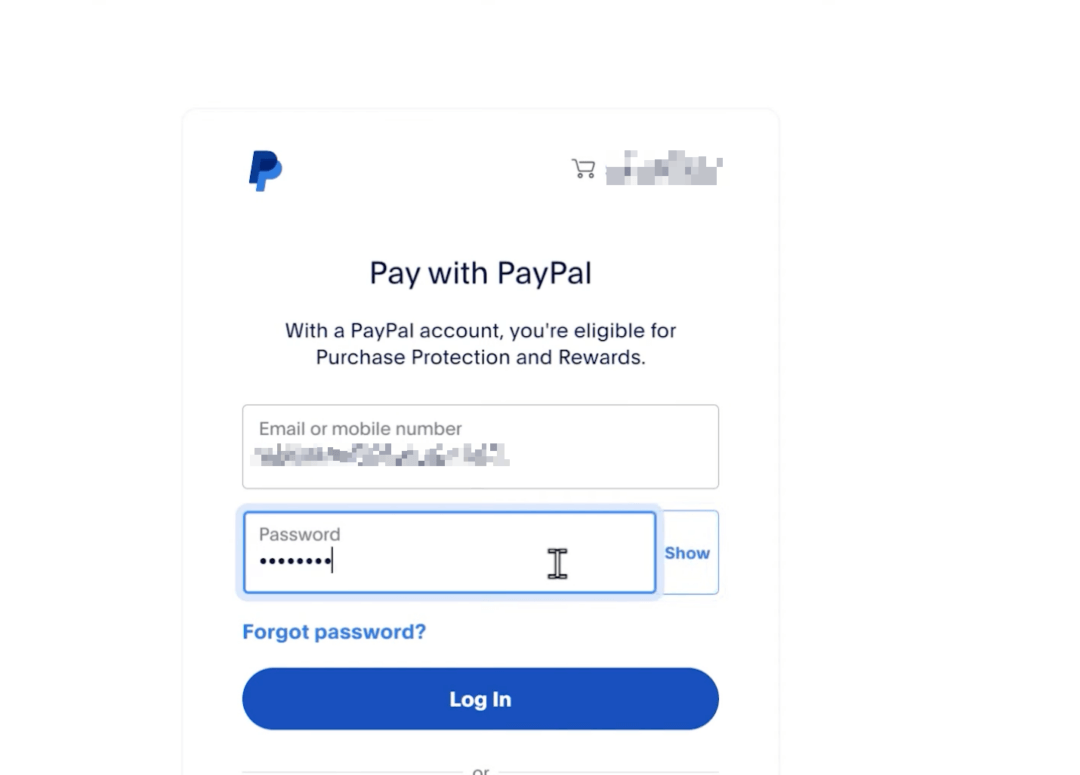
Step 8: Log In and Complete the Test Payment
Use the email address for the personal test account and the password you created earlier. Click on the Login button.
After logging in, you will be taken to the order summary page where you’ll see the order details, a generic name, and possibly an address depending on your PayPal settings.
The Pay With option will automatically be set to Balance. Click on the Pay Now button to complete the test transaction. You should then see a page confirming your order.

Step 9: Verify the Test Payment in WPForms
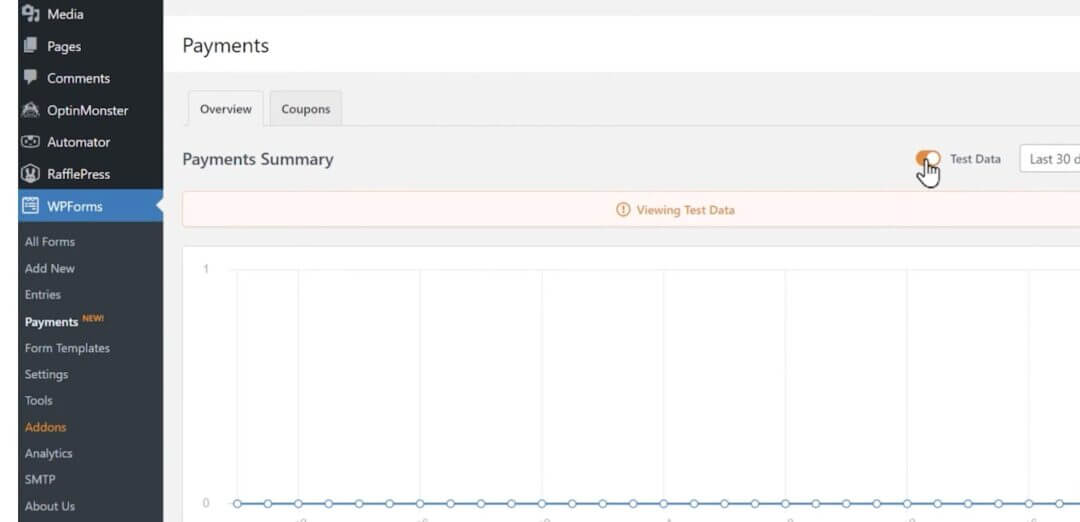
If you want to see the test payment on your site, go to WPForms and open Payments.
Above the graph, there is a toggle called “Test Data.” Click on it to enable it, and you should see your test payment from PayPal.
Step 10: Switch to Live Mode
When you are done testing, go back into the PayPal Standard tab of the WPForms Form Builder. Switch the mode from Test/Sandbox to Production.

Then write in the email address associated with your real PayPal account in the PayPal Email Address field.
Tax Implications: US vs Non-US Founders
When you set up your PayPal Business account, PayPal classifies you as either a US or non-US taxpayer.
That classification determines:
- Which form you submit to PayPal: W-9 if you’re U.S.; W-8BEN/W-8BEN-E if you’re non-U.S.
- Whether PayPal issues a 1099-K: typically yes for U.S. accounts that meet the threshold; no for non-U.S. accounts.
- How you treat the income in your books and taxes: U.S. founders report worldwide income; non-U.S. founders usually report U.S.-source income in the U.S. (and report everything else in their home country).
In short, figure out which bucket PayPal puts you in (U.S. vs non-U.S.). Once that’s clear, follow the matching checklist for forms, reporting, and bookkeeping.
Quick 1099-K status (as of Oct 27, 2025)
Congress rolled back the lower federal thresholds. For federal reporting, tax platforms now use the original threshold: more than $20,000 in gross payments and more than 200 transactions in a calendar year.
Some states still require lower thresholds, so you can receive a 1099-K based on your account’s state address even if you’re below the federal bar.
Heads-up on states: Several states (e.g., MA, MD, VT, VA, DC) maintain lower state thresholds. Always verify with your state revenue site before year-end close.
If You’re a U.S. Founder Who Uses PayPal
You’re a U.S. person or U.S. entity, and your PayPal is set to the U.S., this is you.
When you open a PayPal Business account as a U.S. founder, PayPal is legally required to collect your tax identification details. That’s why they ask for Form W-9.
On that form, you provide your legal name (the one you use on your tax return) and your Taxpayer Identification Number (TIN), usually your Social Security Number (SSN) if you’re an individual, or your Employer Identification Number (EIN) if you’re a company.
PayPal uses this information to report your total payments to the IRS if your account meets the 1099-K threshold.
What Counts as Income?
When PayPal reports your sales to the IRS on Form 1099-K, it shows the total amount of money your customers paid you, this number appears in Box 1a, called gross payments.
That means it includes everything that flowed through your PayPal before any deductions:
- PayPal’s processing fees
- Refunds or chargebacks
- Shipping costs you paid on behalf of a customer
Even though those amounts reduce what you actually receive, the IRS still wants you to report the full gross income first.
You then subtract those costs later in your bookkeeping or tax return as business expenses (for example, under “merchant processing fees” or “shipping and postage”).
So, here’s the note for you:
Gross income = every dollar collected through PayPal
Net profit = gross income – fees – refunds – other expenses
That’s why your 1099-K amount will usually look higher than the money that actually landed in your bank account, and that’s perfectly normal.
If You’re a Non-U.S. Founder Who Uses PayPal
If you live outside the U.S. but use PayPal to sell online or receive business payments, your tax situation works a bit differently.
Let’s go step by step.
1. Why PayPal Asks You for a “W-8BEN” or “W-8BEN-E”
When you create a PayPal Business account, PayPal needs to know whether you’re a U.S. taxpayer or not. If you’re not from the U.S., PayPal will ask you to complete a W-8 form:
- W-8BEN: if you’re an individual (for example, a freelancer or sole founder)
- W-8BEN-E: if you’re a company registered outside the U.S.
This form is not a tax you pay, it’s just proof that you’re not a U.S. taxpayer.
You’ll fill in:
- your full legal name,
- your country of tax residence,
- your local tax identification number (if you have one), and
- a short confirmation that you’re not a U.S. citizen or U.S. business.
Once that’s done, PayPal treats your account as foreign, meaning:
- you won’t receive U.S. tax forms like a 1099-K,
- PayPal won’t withhold U.S. taxes from your payouts, and
- you stay compliant with U.S. financial regulations.
Note: The W-8 form usually stays valid for three full calendar years. After that, PayPal will ask you to renew it. If your situation changes (for example, you move to the U.S. or open a U.S. company), update it right away.
2. Where You Actually Pay Taxes
Type of Sale
Is It Taxed in the U.S.?
Where You Normally Pay Tax
You sell to customers outside the U.S.
❌ No
✅ In your home country
You sell to U.S. customers (but your business is run from abroad)
⚠️ Maybe (depends on treaties & whether you have a U.S. presence)
✅ In your home country, and possibly the U.S. if you have operations there
So, if you’re sitting in India, France, or Singapore, selling digital products or services globally, you’ll usually just pay tax in your own country.
And, if you set up a U.S. company (like a Delaware LLC), keep inventory or a warehouse in the United States, or have staff or contractors working there, the IRS may treat some of your sales as U.S.-sourced income, which means the U.S. can tax that portion, even if you live abroad.
3. What Happens If You Use a U.S. LLC
Many founders outside the U.S. create a U.S. LLC (for example, in Delaware or Wyoming) to accept payments and look professional.
That’s fine, but here’s the important bit:
If the LLC is 100% foreign-owned (you’re not a U.S. person), the IRS still wants basic information from you each year, even if you make no money.
For example, you must file two simple forms:
- Form 5472: This tells the IRS that your LLC exists and shows any transactions between you and your LLC (like money you transfer in or out).
- Pro-forma Form 1120: This form is just a “cover sheet” that goes with the Form 5472.
These are information forms, not tax returns. You don’t pay tax through them. But if you forget to file, the penalty starts at $25,000.
So, if you run a foreign-owned U.S. LLC, mark these on your calendar every year. doola has a team to handle them for you easily.
4. What PayPal Reports (and What It Doesn’t)
PayPal’s reporting depends on your account type and country setting.
- For non-U.S. accounts: PayPal does not send a 1099-K to the IRS.
- For U.S. accounts: PayPal reports sales above $20,000 and 200 transactions a year (or lower if your state has different rules).
Even if you don’t get any form from PayPal, you’re still required to declare your business income in your own country’s tax return. PayPal doesn’t pay or withhold taxes for you, it just moves the money.
5. Keep Your Records Clean (This Part Saves You Later)
Here are a few simple steps to stay audit-proof and stress-free:
- Use PayPal only for business. Avoid mixing personal payments with sales.
- Connect PayPal to bookkeeping software. Use doola Books, QuickBooks, or Xero so every sale, refund, and fee is automatically recorded.
- Tag customer locations. This helps you prove whether your income is U.S. or non-U.S.
- Save invoices and payout reports. They’re your evidence if any tax authority asks how you calculated your numbers.
| Quick RecapSubmit W-8BEN (individual) or W-8BEN-E (company) in PayPal to confirm you’re non-U.S.
✔️ Keep it updated every 3 years or if your situation changes. ✔️ PayPal usually won’t issue a 1099-K for non-U.S. accounts. ✔️ Foreign-owned U.S. LLCs must file Form 5472 + pro-forma 1120 yearly (even with $0 income). ✔️ Pay taxes in your home country, unless you have a U.S. presence. ✔️ Keep clear records. PayPal transactions, customer locations, and invoices. |
Important Compliance Notes
FATCA & PayPal (Who Gets Reported and When)
PayPal collects tax certifications like W-9 for U.S. persons and W-8BEN/W-8BEN-E for non-U.S. persons, to comply with FATCA.
If your account is flagged as U.S.-linked (e.g., U.S. address, U.S. owner, or U.S. TIN), PayPal may share limited details (name, address, tax ID, balances) with the IRS or your local authority, typically on an annual basis.
If you’re non-U.S., keep your country, profile details, and W-8 current so PayPal doesn’t misclassify you as U.S.-linked.
24% Backup Withholding (If You Don’t Submit the Right Form)
If you don’t provide the required tax info, or your TIN is missing/invalid, PayPal must withhold 24% of eligible payouts and remit it to the IRS (backup withholding).
It’s a prepayment, not a penalty, and it stops once your information is fixed.
So, submit W-9 (U.S.) or W-8BEN/W-8BEN-E (non-U.S.). If you skip it, expect 24% withholding until you do.
W-8 Validity Window (Small but Important)
As a baseline, a W-8 is valid from the signature date through the end of the third succeeding calendar year, unless your circumstances change sooner (move, entity change, U.S. presence).
Make sure you plan to renew your W-8 about every three years or whenever your tax situation changes.
Bottom Line: Keep your tax form current (W-9 or W-8), know your federal and state 1099-K thresholds, diarize 5472 + pro-forma 1120 if you’re a non-U.S. owner of a U.S. SMLLC, and keep clean books (auto-sync PayPal, tag customer locations).
References
IRS Form W-9: https://www.irs.gov/forms-pubs/about-form-w-9
IRS Form W-8BEN: https://www.irs.gov/forms-pubs/about-form-w-8-ben
IRS Form W-8BEN-E: https://www.irs.gov/forms-pubs/about-form-w-8-ben-e
PayPal Tax Center: https://www.paypal.com/taxcenter
Get Started with a PayPal Business Account
A smooth PayPal setup rests on three pieces: correct business info, a well- formed entity, and a verified business bank account. Put those in place and the rest flows better: fewer holds and faster payouts.
If any step feels overwhelming, you don’t have to figure it out alone. Sign up to know more.


Table of Contents
PayPal Payments Eligibility by CountryPayPal Payments Setup PrerequisitesPayPal Payments Setup Process for US FoundersPayPal Payments Setup Process for Non-US FoundersPreparing to Open a PayPal Business Account as a Non-US FoundersTax Implications: US vs Non-US FoundersImportant Compliance NotesReferencesGet Started with a PayPal Business AccountStart Your Dream U.S. Business Today.